
Fix “There Was an Error Connecting to the Apple ID Server”
Encountering the message “There was an error connecting to the Apple ID server” can be frustrating, especially when you need to download an app, sign into iCloud, or access important Apple services. This common but disruptive issue can affect both macOS and iOS devices, and while it may seem like a dead end, it’s usually fixable with a few systematic steps. Whether it’s a temporary connectivity problem or a deep-rooted configuration issue, this guide will help you troubleshoot and resolve the error with confidence.
TL;DR
If you’re seeing the error “There was an error connecting to the Apple ID server,” the issue likely stems from network settings, time/date misconfigurations, or temporary Apple server outages. Start by checking your internet connection and Apple’s server status page. If the problem persists, move on to adjusting system settings, ensuring that your software is up to date, and resetting your network settings. Follow this guide step by step to identify and fix the root cause.
1. Check Apple’s System Status
Before diving into device-specific troubleshooting, always verify whether the issue originates from Apple’s end. Apple periodically has service disruptions due to maintenance, outages, or updates.
- Go to Apple’s System Status page.
- Look for any ongoing problems with services like Apple ID, iCloud, or App Store.
If Apple’s services are down, the best course of action is to simply wait. Try again after some time when the servers are back online.
2. Inspect Your Internet Connection
A weak or unstable internet connection is a frequent cause of this error. Apple ID authentication requires continuous access to Apple’s servers.
- Switch between Wi-Fi and cellular data (if on an iPhone or iPad) to see if the connection type affects the outcome.
- If on a Mac, try loading a website in Safari to check the connection status.
- Reset the router or move closer to a Wi-Fi access point for a stronger signal.
Switching networks (e.g., from home Wi-Fi to a mobile hotspot) has resolved this issue for many users.
3. Make Sure Date and Time Are Correct
Apple’s servers rely on correct date and time settings to authenticate connections. Even a slight deviation can prevent successful login attempts.
On Mac:
- Go to System Settings or System Preferences and click on Date & Time.
- Ensure “Set date and time automatically” is enabled.
On iPhone/iPad:
- Open Settings > General > Date & Time.
- Enable “Set Automatically.”
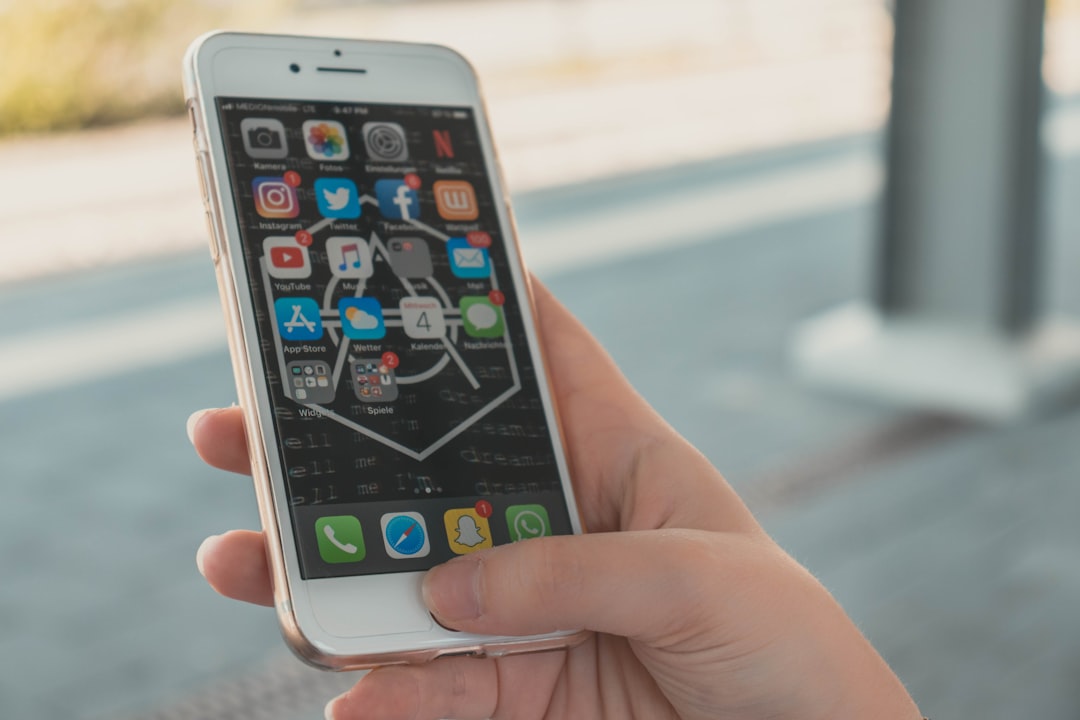
If the time is incorrect, fix it and try signing into your Apple ID again.
4. Restart Your Device
Sometimes simple, time-tested solutions still work best. A quick restart can clear temporary glitches and resets networking configurations that might obstruct server connections.
- On iPhone/iPad: Hold the Side and Volume buttons, then slide to power off. Turn it back on afterward.
- On Mac: Click the Apple menu and choose Restart.
Once your device reboots, try logging back in to your Apple ID.
5. Disable VPNs and Firewalls Temporarily
Third-party software including VPNs, firewalls, and antivirus applications might prevent your system from connecting with Apple’s servers securely.
Try the following:
- Disable any active VPN profiles on your device.
- Pause or temporarily uninstall antivirus/firewall software.
- On Mac, navigate to System Settings > Network > VPN and disconnect unnecessary configurations.
After disabling these tools, test your Apple ID login process again. Be sure to turn them back on once you’re finished testing.
6. Sign Out and Sign In to Apple ID
Sometimes, re-establishing your session with Apple servers can solve the issue. You can do this by signing out of your Apple ID and then signing back in.
Warning: Signing out may disconnect services like iCloud, iMessages, and FaceTime, and could temporarily remove synced data. Ensure you’ve backed up essential files before proceeding.
On iPhone/iPad:
- Go to Settings, tap your name at the top.
- Scroll down and tap Sign Out. Follow the on-screen steps.
- Reboot the device, then sign in again.
On Mac:
- Go to System Settings or System Preferences, then click Apple ID.
- Select Overview and click Sign Out.
- Restart and sign in again from the same panel.
7. Check for Software Updates
Using outdated software can often introduce compatibility issues, especially with secure services like Apple ID. New updates often include security patches and connectivity fixes.
- On Mac: Go to System Settings > General > Software Update.
- On iPhone/iPad: Open Settings > General > Software Update.
If any updates are available, install them and restart your device once the update process completes. Then attempt signing in again.
8. Reset Network Settings
If none of the above solutions work, resetting your network settings might help. It erases Wi‑Fi passwords, VPN configurations, and other network preferences, often clearing out problematic credentials or misconfigurations.
On iPhone/iPad:
- Go to Settings > General > Transfer or Reset iPhone.
- Tap Reset > Reset Network Settings.
Note: This step doesn’t delete personal data but does require you to re-enter saved Wi-Fi credentials.
9. Use Safe Mode (Mac Only)
Booting your Mac into Safe Mode disables third-party processes and can help identify software conflicts interfering with Apple ID connections.
To enter Safe Mode on a Mac with Apple Silicon:
- Turn off your Mac completely.
- Press and hold the power button until “Loading startup options” appears.
- Select your startup disk, then press and hold the Shift key and click “Continue in Safe Mode.”
On Intel Macs:
- Start your Mac and immediately hold down the Shift key.
- Release it when you see the login window.
Once in Safe Mode, try connecting to your Apple ID again to see if the error persists. If it doesn’t, the problem could be a third-party login item or system extension.
10. Contact Apple Support
If you’ve followed all the above methods and are still encountering the error, it may be time to seek professional help. Apple’s support team can run diagnostics and offer personalized solutions.
- Visit the Apple Support website.
- Use the Get Support tool to book a Genius Bar appointment or schedule a callback with a technician.
- Alternatively, you can try support through the Apple Support app available on iOS devices.
Conclusion
The message “There was an error connecting to the Apple ID server” can stem from a range of causes—from something as minor as an incorrect date setting to more advanced network interference or software corruption. The key to resolving this is patience and a methodical approach. By following the steps outlined above, you should be able to diagnose and fix the issue in most cases without needing drastic measures.