
How to Change Your Snapchat Password (Step-by-Step)
Forgetting your Snapchat password can feel stressful. Maybe you got logged out. Maybe you just want better security. Either way, changing your Snapchat password is easier than you think. You only need a few minutes and your phone (or computer).
TL;DR: Changing your Snapchat password is quick and simple. Open Snapchat, go to Settings, tap Password, and follow the steps. You can reset it using your email or phone number if you forgot it. Choose a strong new password to keep your account safe.
Let’s walk through everything step by step. No confusion. No stress. Just simple instructions.
Why You Might Want to Change Your Snapchat Password
There are many good reasons to update your password.
- You forgot your current password.
- You think someone else knows it.
- You saw suspicious activity.
- You use the same password for other apps.
- You just want better security.
Changing your password regularly is smart. It protects your snaps, chats, and personal information.
How to Change Your Snapchat Password (When You Know It)
If you’re logged in and remember your password, this is the fastest method.
Step 1: Open Snapchat
Launch the app on your phone.
Make sure you’re logged into your account.
Step 2: Go to Your Profile
Tap your Bitmoji or profile icon in the top-left corner.
This opens your profile page.
Step 3: Open Settings
Look for the gear icon in the top-right corner.
Tap it.
You’re now inside the Settings menu.
Step 4: Tap “Password”
Scroll down until you see Password.
Tap it.
Snapchat will ask for your current password.
Step 5: Enter Your Current Password
Type it carefully.
Then tap Continue.
Step 6: Create a New Password
Now enter your new password.
Make it strong. More on that later.
Confirm the new password.
Tap Save.
That’s it. You’re done!
How to Reset Your Snapchat Password (If You Forgot It)
Don’t remember your password? No problem.
Follow these steps.
Step 1: Open Snapchat
Launch the app.
On the login screen, tap Forgot your password?
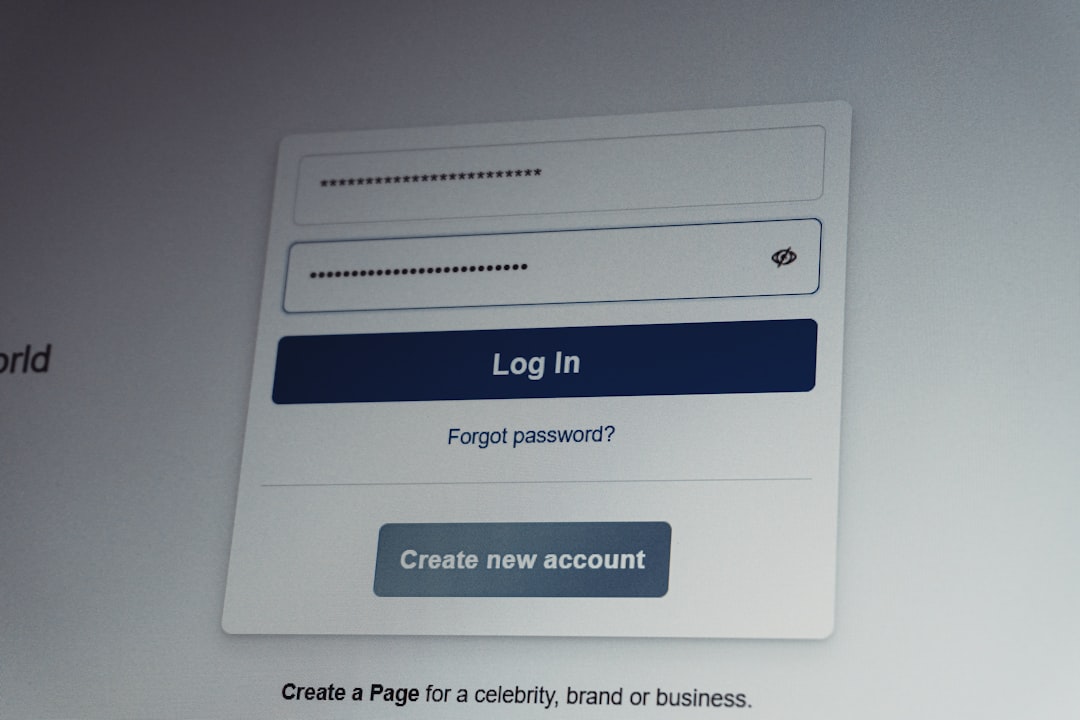
Step 2: Choose Reset Method
You’ll see two options:
- Via Phone
- Via Email
Pick the one you have access to.
Option 1: Reset via Phone
If you choose phone:
- Enter your phone number.
- Tap Continue.
- Receive a verification code via SMS.
- Enter the code.
- Create a new password.
Simple and fast.
Option 2: Reset via Email
If you choose email:
- Enter your email address.
- Check your inbox.
- Open the password reset email.
- Click the reset link.
- Create a new password.
Be sure to check your spam folder if you don’t see the email.
How to Change Your Snapchat Password on a Computer
You can also change your password using a web browser.
Here’s how.
Step 1: Go to Snapchat Accounts Page
Visit: https://accounts.snapchat.com
Log in with your username and password.
Step 2: Click “Change Password”
Once logged in, select Change Password.
Step 3: Enter Your Information
- Current password
- New password
- Confirm new password
Click Save.
Your password is now updated.
This method is helpful if your phone isn’t nearby.
Tips for Creating a Strong Snapchat Password
Not all passwords are safe.
“123456” is not safe.
“password” is not safe.
Let’s make yours strong.
Use These Tips:
- At least 8–12 characters long
- Mix of uppercase and lowercase letters
- Include numbers
- Add special symbols like ! @ # $
- Avoid your name or birthday
Example of a weak password:
snapchat123
Example of a stronger password:
S7!mpleSn@p2026
See the difference?
The stronger one is harder to guess.
Bonus Tip: Turn On Two-Factor Authentication
Want extra security?
Turn on Two-Factor Authentication (2FA).
This adds another layer of protection.
How to Enable It:
- Open Snapchat
- Go to Profile
- Tap the gear icon (Settings)
- Select Two-Factor Authentication
- Follow setup steps
Now, even if someone knows your password, they can’t log in without your verification code.
Smart move.
What If You Can’t Access Your Email or Phone?
This is trickier. But there’s still hope.
If you don’t have access to your registered email or phone number:
- Go to Snapchat Support.
- Select login issues.
- Follow the account recovery steps.
Snapchat may ask for:
- Your username
- Previous passwords
- Account details
Provide as much accurate information as possible.
This increases your chances of recovering the account.
Common Problems (And Quick Fixes)
Problem: Reset email not arriving
- Check spam folder.
- Make sure you typed the correct email.
- Wait a few minutes.
Problem: SMS code not working
- Check your signal.
- Make sure your number is correct.
- Request a new code.
Problem: “Password too weak” message
- Add more characters.
- Include symbols.
- Mix uppercase and lowercase letters.
Most issues are easy to fix.
How Often Should You Change Your Snapchat Password?
You don’t need to change it every week.
But changing it every 6 to 12 months is a good habit.
Change it immediately if:
- You notice strange activity.
- You shared it with someone.
- Another account of yours was hacked.
Stay proactive. Not reactive.
Quick Security Checklist
Before you go, run through this list:
- ✅ Strong password
- ✅ Unique to Snapchat
- ✅ Two-Factor Authentication enabled
- ✅ Updated recovery email
- ✅ Correct phone number linked
If you checked all five, you’re in great shape.
Final Thoughts
Changing your Snapchat password is not complicated.
It only takes a few taps.
But it makes a big difference.
Your Snapchat holds personal messages. Private photos. Conversations with friends. Keeping it secure matters.
Now you know exactly how to:
- Change your password while logged in
- Reset it if you forgot it
- Update it from a computer
- Create a strong password
- Add extra security
Nice and simple.
If you haven’t changed your password in a while, maybe now’s a great time.
Your future self will thank you.