
Top 6 Mac Video Editing Tools Indie Creators Use to Edit YouTube Videos Without Final Cut
So, you’re an indie content creator using a Mac, but you’re not ready to shell out for Final Cut Pro. No worries! You’re not alone. Plenty of YouTubers and creators want powerful editing tools without the price tag.
TLDR:
You don’t need Final Cut Pro to create kick-butt YouTube videos on a Mac. Many indie creators use free or budget-friendly software that still packs serious power. Tools like DaVinci Resolve, iMovie, and CapCut offer easy editing with pro-quality features. Whether you want mobile convenience or desktop control — there’s something here for you.
1. DaVinci Resolve – Hollywood Tools for Free
Want color grading like the pros? DaVinci Resolve is your best friend. This editor is packed with tools used in blockbuster films — and it has a zero-dollar price tag for the standard version.
- Platforms: Mac, Windows, Linux
- Best for: Advanced color correction, powerful editing
- Price: Free (Paid Studio version available with extras)
- Learning curve: Medium to high
If you’ve worked with editing software before, you’ll pick it up fast. If you’re new, there are plenty of YouTube tutorials to help. Indie creators love the level of control it gives without draining your wallet.
Image not found in postmeta2. CapCut – TikTok’s Best Friend Goes Desktop
If you’re active on social platforms, you might know CapCut from mobile. Now it’s available on Mac!
- Platforms: Mac, iOS, Web
- Best for: Quick social cuts, trendy effects, auto-captions
- Price: Free
- Learning curve: Easy
CapCut is great for jump cuts, music syncing, and even automatic subtitles. It’s a dream for vloggers, short-form content, and reaction videos. There’s a built-in library of sound effects, transitions, and overlays too.
3. iMovie – Mac’s Free Starter Pack
This one comes pre-installed on your Mac, so it’s ready to go out of the box. iMovie is the OG beginner editor for Apple lovers.
- Platforms: Mac, iOS
- Best for: Beginners, simple YouTube videos
- Price: Free
- Learning curve: Very easy
You won’t get pro editing layers or advanced effects here, but it’s a solid place to start. Drag-and-drop functionality makes cutting clips and adding music a breeze. Perfect for simple unboxings, storytelling, and lifestyle vlogs.
Bonus: Projects sync across Apple devices, so you can start on your iPhone and finish on your Mac.
4. HitFilm – Effects Without the Effort
HitFilm (formerly known as HitFilm Express) is for the creator who wants cool editing tricks fast. Think light flares, explosions, and slick motion graphics with very little headache.
- Platforms: Mac, Windows
- Best for: YouTubers creating tutorials, game videos, or action-style edits
- Price: Free (with premium add-ons)
- Learning curve: Medium
The interface feels like a mix between iMovie and After Effects. It’s smooth enough for beginners but has advanced tools under the hood.

5. Shotcut – The Open-Source Underdog
If you like open-source software and don’t mind an indie feel, Shotcut just might be your jam. It’s surprisingly powerful and works great on Macs.
- Platforms: Mac, Windows, Linux
- Best for: Indie nerds, tech-savvy editors
- Price: Free
- Learning curve: Medium
Shotcut doesn’t hold your hand like iMovie. But it gives you lots of control with 4K support, filters, transitions, and audio tools.
It looks a bit basic at first, but the features go deep. If you like tweaking settings and customizing your experience, give it a try.
6. Lightworks – The Secret Weapon of Film Geeks
Lightworks has been around forever in the pro world — some Hollywood films were even edited on it (true story!). The free version fits right into an indie creator’s toolkit.
- Platforms: Mac, Windows, Linux
- Best for: Documentary-style content, montages, short films
- Price: Free basic version, paid pro version
- Learning curve: Medium to high
Lightworks comes with real-time effects and precise control over clips. It’s not for casual editors, but if you’re aiming to level up your editing skills, it’s worth learning.
Things to Think About Before Choosing
Every creator is different. Think about these factors when picking your editing tool:
- Your Skill Level – Are you just starting or already confident with editing?
- Type of Content – Are you making daily vlogs, cinematic reels, or how-tos?
- Computer Power – Some editors (like DaVinci) need more juice.
- Budget – Free tools work great, but some paid features might be worth the cost.
You might even want to combine tools — like using CapCut for captions and DaVinci for final grading.
Bonus: Mobile Options for On-the-Go Editing
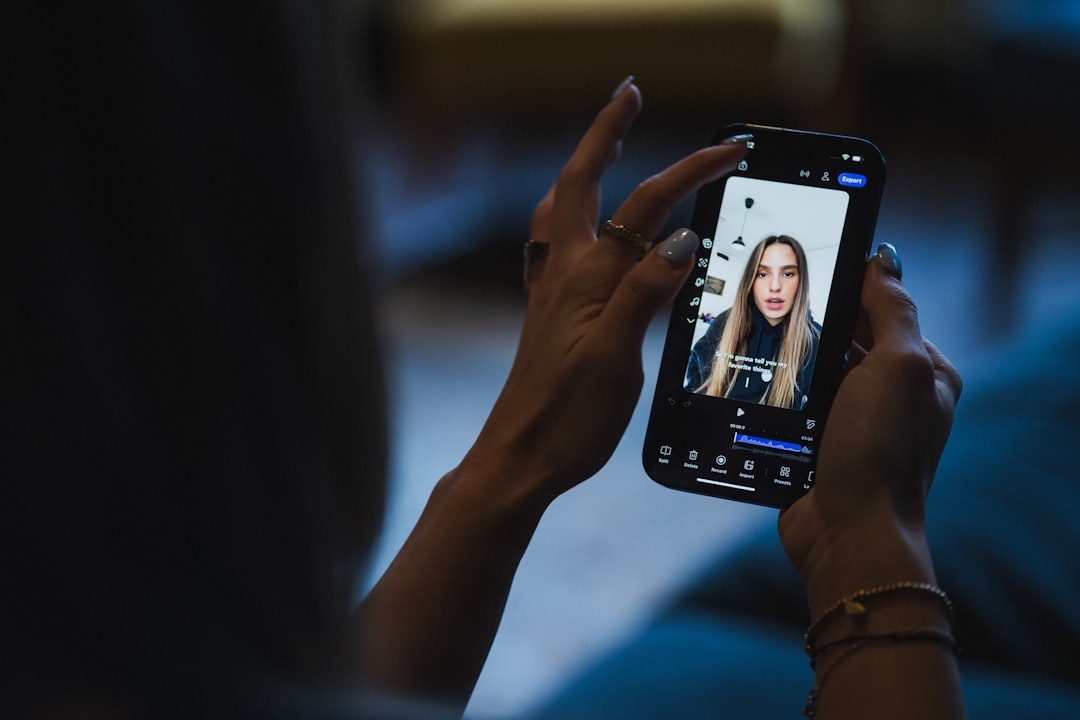
If you’re a travel vlogger or just super busy, mobile editing is huge. Here are a couple of Mac-compatible editors with excellent mobile apps too:
- CapCut Mobile – Same as desktop but on your phone. Easy syncing across devices.
- iMovie for iPhone – Edit on the plane or from your couch.
- LumaFusion (Paid) – Super powerful iOS editor. Favored by mobile-first creators.
Final Thoughts
You don’t need to spend $300 on Final Cut Pro to make amazing videos on your Mac. There are tons of smart, creative indie creators out there using free or low-cost tools — and still crushing it on YouTube.
Try out a few editors and see which one feels best for your workflow. Look at your needs now and think about where you want to grow. And remember — it’s not about the tool. It’s all about the story you’re telling.
So go ahead — grab your Mac, pick your editor, and start creating!