3 Screen Recording Tools For Tutorials
Creating high-quality tutorials requires more than expertise in a subject. It demands clarity, structure, and the ability to visually guide viewers through each step. Whether you are producing software walkthroughs, academic lessons, technical training, or onboarding materials, the right screen recording tool can significantly impact the professionalism and effectiveness of your content. Choosing reliable software ensures smooth recording, clear audio, and efficient editing—elements that directly influence viewer trust and engagement.
TLDR: Selecting the right screen recording tool is essential for producing professional tutorials. OBS Studio offers powerful, flexible recording for advanced users. Camtasia provides an all-in-one solution with strong editing capabilities. ScreenFlow delivers high-quality recording and streamlined editing for Mac users. Each tool serves different needs, but all three stand out for reliability, performance, and long-term value.
Below are three screen recording tools that consistently perform at a high standard. Each has earned its place based on stability, features, usability, and relevance for tutorial creators.
1. OBS Studio: Powerful and Flexible for Advanced Tutorials

Open Broadcaster Software (OBS) Studio is one of the most trusted open-source screen recording solutions available today. It is widely used by educators, developers, corporate trainers, and content creators who require flexibility and performance. While it has a steeper learning curve than some alternatives, its capabilities are extensive.
Why OBS Studio Stands Out
- Completely free and open-source, with no watermark or recording limits.
- High-performance recording, even for complex multi-source projects.
- Customizable scenes and sources, allowing overlays, webcams, slides, and screen capture simultaneously.
- Advanced audio control, with multiple input sources and filters.
- Cross-platform compatibility (Windows, macOS, Linux).
For tutorial creators, the ability to combine screen recording with a webcam feed and branded overlays is essential. OBS allows creators to design structured layouts that maintain visual consistency throughout a course or series. For example, you can set up:
- A main screen capture area
- A smaller webcam window for instructor presence
- Lower-third titles for sections
- On-screen annotations or alerts
This type of scene configuration is particularly useful for technical demonstrations, programming lessons, and software walkthroughs.
Best Use Cases
OBS is ideal for:
- Technical training sessions
- Live tutorial streaming
- Complex instructional setups
- Budget-conscious educators
However, OBS does not include integrated video editing tools. Editing must be handled in separate software, which may add time to your workflow. For those who prioritize flexibility over convenience, this tradeoff is often worthwhile.
2. Camtasia: Comprehensive Recording and Editing in One Platform
Camtasia is widely recognized as a professional solution designed specifically for educational and tutorial content creation. Developed with instructional designers and trainers in mind, Camtasia combines robust screen recording capabilities with intuitive yet powerful video editing tools.
Unlike OBS, Camtasia is an all-in-one platform. This means you can record, edit, and export without needing additional software.
Key Features
- Built-in video editor with timeline-based editing
- Pre-built assets such as callouts, transitions, cursor effects, and animations
- Interactive elements including quizzes and clickable hotspots
- High-quality screen and webcam recording
- Royalty-free media library
One of Camtasia’s greatest strengths is its focus on clarity. Tutorial creators often need to highlight mouse movements, zoom into important details, and emphasize onscreen actions. Camtasia simplifies these processes with built-in cursor effects and easy zoom-and-pan animations.
This functionality significantly reduces editing time. Instead of manually keyframing complex edits, creators can use ready-made tools tailored to instructional video standards.
Advantages for Professional Tutorials
For structured courses and corporate training materials, consistency is critical. Camtasia supports:
- Template creation for branding consistency
- Standardized intros and outros
- Accessible captioning tools
- Clean export options optimized for learning platforms
The software is user-friendly enough for beginners but robust enough for experienced professionals. While it is a paid solution, many organizations consider it a long-term investment due to the time saved during editing and post-production.
Camtasia is especially suitable for:
- Corporate training programs
- Online courses
- Academic instruction videos
- Professional product demonstrations
3. ScreenFlow: High-Performance Recording for macOS Users
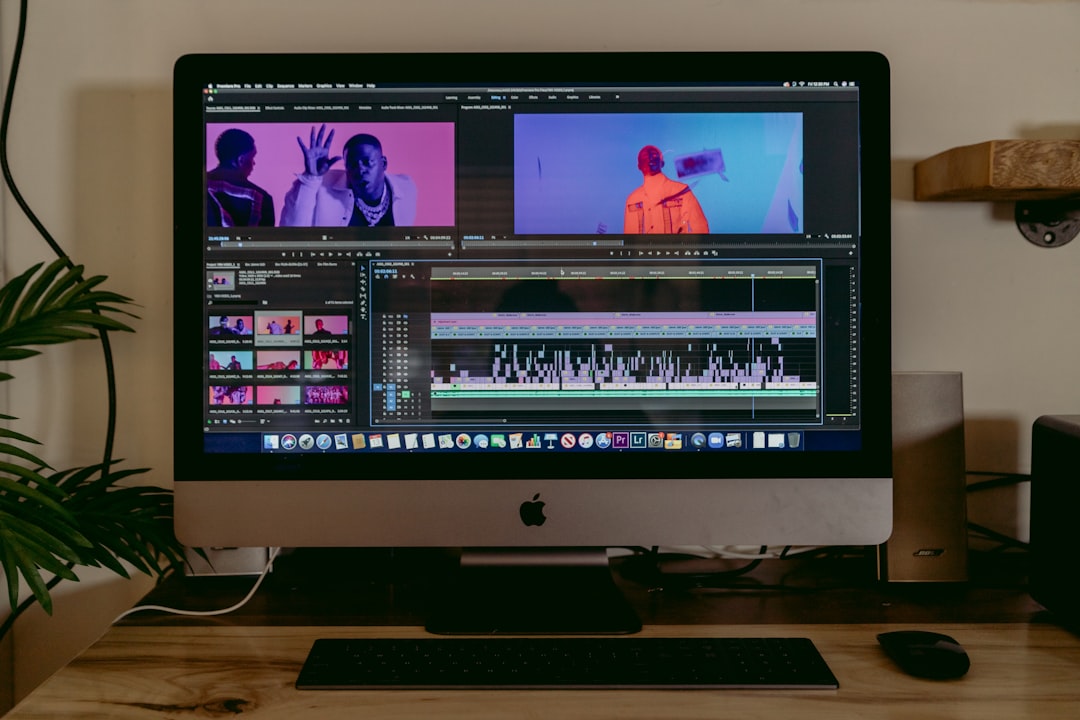
ScreenFlow is a powerful screen recording and video editing solution designed specifically for macOS users. It combines smooth recording performance with professional-level editing tools in a streamlined interface.
For educators and tutorial producers working in the Apple ecosystem, ScreenFlow provides excellent system integration and stable recording quality.
Core Strengths
- High-resolution Retina screen recording
- Simultaneous recording of screen, webcam, microphone, and system audio
- Multi-track video editing
- Advanced motion graphics and animations
- Direct publishing options
ScreenFlow’s layout is intuitive, balancing professional capability with ease of use. Its editing timeline allows precise control over visual and audio elements, making it particularly valuable for polished course production.
A standout feature is its ability to create fluid zoom effects and animated callouts. In tutorial content, these visual enhancements improve comprehension by directing viewer attention exactly where it is needed.
Where ScreenFlow Excels
ScreenFlow is especially well-suited for:
- Mac-based educators and course creators
- Design and creative software tutorials
- Product walkthroughs requiring visual polish
- Professional development content
Its optimization for macOS ensures stable performance even during extended recording sessions. For creators producing long-form tutorials, this reliability is essential.
How to Choose the Right Tool
Selecting the best screen recording software depends on several critical factors. Rather than focusing purely on popularity, consider your production goals and workflow.
1. Skill Level
- If you need advanced customization and are comfortable configuring software, OBS Studio is a strong option.
- If you prefer structured editing and easy workflow management, Camtasia may be more appropriate.
- If you use macOS and want balanced performance with editing power, ScreenFlow is highly effective.
2. Editing Needs
Ask yourself:
- Do you need built-in editing?
- Will you use animations and visual callouts frequently?
- Are branding templates important?
If editing is central to your production process, all-in-one solutions like Camtasia or ScreenFlow reduce complexity.
3. Budget Considerations
- OBS Studio: Free and highly capable
- Camtasia: Paid, comprehensive solution
- ScreenFlow: Paid, Mac-exclusive professional tool
Free software may seem appealing, but production time and workflow efficiency should also factor into your decision.
4. Long-Term Scalability
If you plan to build a course library or grow a training business, consider whether your tool supports:
- Templates and branding consistency
- High-resolution export
- Accessibility features
- Future content upgrades
Final Thoughts
Producing effective tutorials requires more than recording your screen. It involves thoughtful presentation, professional audio, structured editing, and visual clarity. The tool you choose plays a foundational role in achieving these standards.
OBS Studio offers unmatched flexibility and performance for creators willing to manage separate editing workflows. Camtasia provides an integrated, efficiency-driven environment tailored specifically to instructional design. ScreenFlow delivers Mac users a powerful yet streamlined solution capable of producing polished, professional tutorials.
Each of these tools has proven reliability and has been widely adopted by educators, trainers, and content professionals. By aligning your choice with your technical proficiency, workflow preferences, and long-term goals, you can create tutorials that are clear, authoritative, and professionally presented.
Investing in the right screen recording software is not simply a technical decision—it is a commitment to quality and viewer trust.