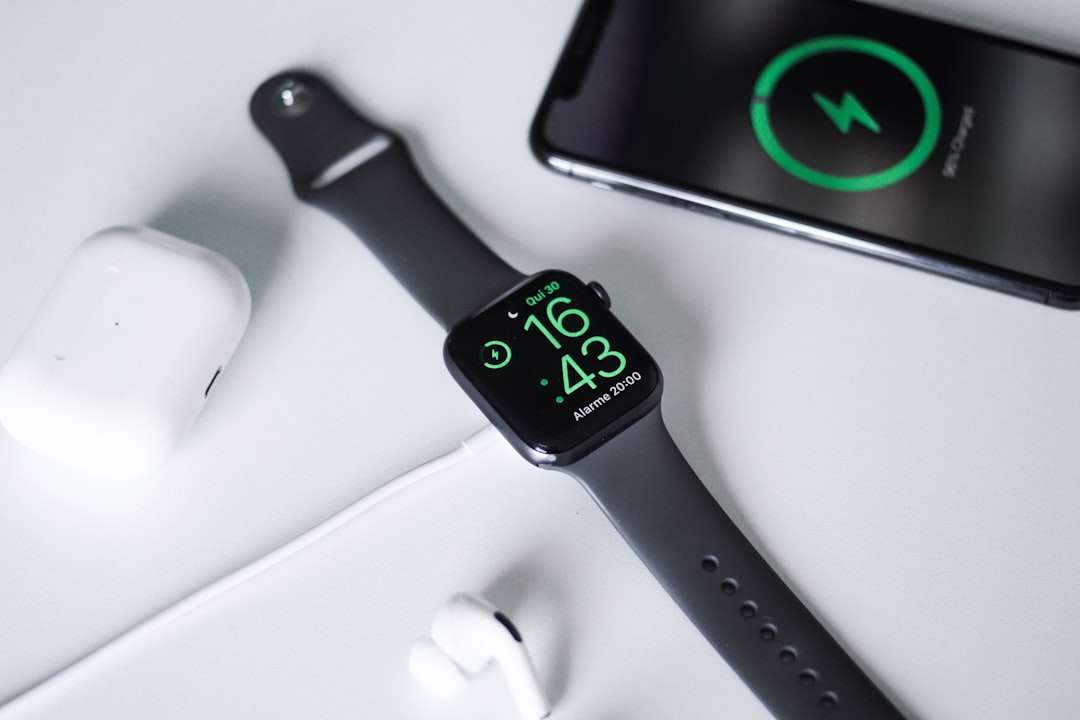
Apple Watch Battery Draining Fast? Fix It
The Apple Watch is designed to last all day, reliably tracking your health, notifications, workouts, and more. So when the battery suddenly starts draining fast, it can be both frustrating and concerning. Rapid battery depletion often signals underlying issues such as software bugs, excessive background activity, or settings that need adjustment. Fortunately, most battery problems can be resolved with clear, methodical troubleshooting.
TL;DR: If your Apple Watch battery is draining fast, start by restarting the device, updating watchOS, and checking for battery-hungry apps. Disable unnecessary background refresh, notifications, and power-intensive features like Always-On Display. Reviewing battery usage data and adjusting settings typically restores normal performance. If problems persist, battery health or hardware issues may require professional support.
Why Is Your Apple Watch Battery Draining So Fast?
Battery drain can happen for several reasons. While lithium-ion batteries naturally degrade over time, sudden battery loss is usually tied to software changes, new watch faces, background processes, or system errors. Understanding the root cause helps you apply the right fix.
Common causes include:
- Recent watchOS updates causing temporary background reindexing
- Excessive notifications and background app refresh
- New apps with high activity levels
- Always-On Display enabled constantly
- Poor cellular or GPS signal strength
- Battery aging or hardware degradation
Start With the Quick Fixes
Before diving into advanced troubleshooting, try these simple solutions. They resolve many cases of rapid battery drain.
1. Restart Your Apple Watch
A restart clears temporary glitches and background processes. Press and hold the side button, then slide to power off. Wait 30 seconds before powering it back on.
2. Update watchOS
Apple regularly releases updates that fix power management bugs. To check:
- Open the Watch app on your iPhone
- Select General > Software Update
- Install any available update
Battery drain after an update may last 1–2 days while indexing completes. If it persists beyond that, further action is required.
3. Check Battery Usage
On your Apple Watch, go to:
- Settings > Battery
This screen shows battery usage over time. Look for unusual spikes or rapid percentage drops.
Identify Power-Hungry Apps
Some apps continuously access GPS, heart rate sensors, or cellular data, draining power faster than expected.
To manage app behavior:
- Open the Watch app on iPhone
- Select General > Background App Refresh
- Turn off refresh for non-essential apps
Fitness tracking, weather updates, streaming apps, and third-party complications are common culprits.
Pro Tip: If battery drain began after installing a new app, remove it temporarily and monitor performance for 24 hours.
Optimize Key Settings for Longer Battery Life
Several high-performance features significantly affect battery life. Adjusting these can restore all-day usage.
Disable Always-On Display
- Go to Settings > Display & Brightness
- Select Always On
- Toggle it off
This feature is convenient but consumes substantial energy throughout the day.
Reduce Wake Duration
- Settings > Display & Brightness
- Select Wake Duration
- Choose Wake for 15 Seconds
Limit Notifications
Every notification activates the screen and sometimes vibration. Review notifications under:
- Watch app > Notifications
Disable alerts from apps that are not essential.
Turn Off Unnecessary Sensors
Features such as environmental sound monitoring and constant heart rate measurements increase drain:
- Privacy > Health
- Privacy > Motion & Fitness

Check Cellular and GPS Usage
Apple Watch models with cellular capability consume more power when struggling to maintain signal. If you’re in a low-signal area, the watch works harder to stay connected.
Best practices include:
- Disable cellular when your iPhone is nearby
- Enable Wi-Fi where available
- Download music or podcasts instead of streaming
During workouts, GPS tracking is also energy-intensive. If precise route mapping is not necessary, consider indoor workout modes.
Unpair and Re-Pair the Watch
If the battery drain continues despite adjustments, corruption in system files may be responsible.
To reset the connection:
- Open the Watch app on your iPhone
- Select your watch
- Tap Unpair Apple Watch
- Pair it again from scratch
This process reinstalls watchOS and often resolves persistent drain issues.
Battery Health and Hardware Considerations
Like all lithium-ion batteries, Apple Watch batteries degrade over time. After two to three years of daily use, noticeable capacity reduction is normal.
To check battery health:
- Settings > Battery
- Select Battery Health
If capacity falls below 80%, battery replacement may be appropriate.
Below is a comparison chart to help determine whether your issue is software-related or hardware-related:
| Symptom | Likely Cause | Recommended Action |
|---|---|---|
| Sudden drain after update | Software indexing or bug | Restart and update |
| Battery drops during workouts only | GPS overuse | Adjust workout settings |
| Battery drains even when idle | Background app activity | Disable app refresh |
| Battery health below 80% | Battery aging | Replace battery |
| Overheating and rapid drain | Potential hardware issue | Contact Apple Support |
When to Contact Apple Support
If you experience:
- Extreme overheating
- Rapid drain from 100% to 0% within hours
- Unexpected shutdowns
- Swelling or physical damage
These signs may indicate hardware failure. Schedule a Genius Bar appointment or contact Apple Support for diagnostics.
Long-Term Battery Preservation Tips
To prevent future drain and extend overall battery lifespan, follow these best practices:
- Avoid consistently draining to 0%
- Keep the watch between 20% and 80% when possible
- Avoid extreme heat exposure
- Use optimized charging when available
- Keep watchOS updated
Important: Lithium-ion batteries naturally age. Even under optimal conditions, some degradation is expected after hundreds of charge cycles.
Final Thoughts
An Apple Watch battery that drains too quickly is rarely a permanent problem. In most cases, adjusting settings, identifying resource-heavy apps, or updating watchOS restores normal performance. Persistent issues usually trace back to aging batteries rather than catastrophic defects.
Approach troubleshooting systematically. Start with simple fixes, analyze usage patterns, optimize settings, and escalate only if necessary. With careful management, your Apple Watch should comfortably last through a full day—delivering the performance and reliability it was designed to provide.