
Beginner Editing Software: A Complete Guide to Beginner Editing Software for Learning Video Editing Skills and Building Creative Projects
The best beginner editing software is the one that lets you cut clips, fix sound, add titles, export clean video, and learn the craft without fighting the interface. For most new editors, that means starting with a free or low-cost tool such as DaVinci Resolve, CapCut, iMovie, Clipchamp, or Adobe Premiere Rush. Your goal is not to find the most powerful software on day one. Your goal is to finish real projects.
TLDR: Start with beginner editing software that matches your device, project type, and patience level. For example, a student making a 90-second class video may finish faster in CapCut or iMovie, while a new creator planning weekly YouTube videos may grow better with DaVinci Resolve. Expect your first clean edit to take 3 to 6 hours, even if the final video is only 2 minutes long. Choose software that helps you practice cutting, audio cleanup, titles, and export settings without adding needless stress.
What Beginner Editing Software Should Actually Do
Good beginner editing software should make basic editing feel clear. You should be able to import footage, place clips on a timeline, trim mistakes, add music, adjust volume, insert text, and export the final video in common formats such as MP4.
A beginner tool does not need every professional feature. It does need to teach proper habits. That means visible timelines, simple audio tracks, clear export options, and basic color controls. If a program hides every useful setting behind vague buttons, it will slow your learning.
Honestly, it feels like some editing apps are designed to look simple while making basic tasks annoying. If trimming one clip takes six taps and a menu search, that is not beginner-friendly. A good tool respects your time.
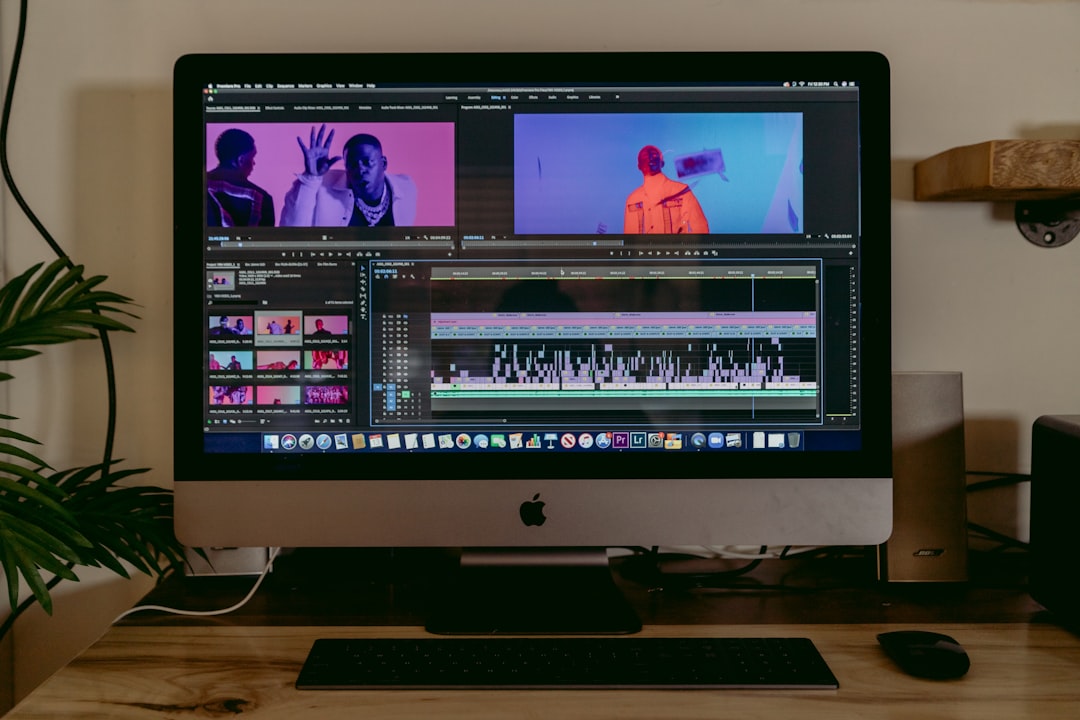
Best Types of Beginner Editing Software
There is no single best option for everyone. The right choice depends on your device, budget, and the kind of project you want to build.
- Mobile editors: Best for short videos, social media posts, quick school projects, and simple creator content.
- Desktop editors: Better for YouTube videos, client work, longer projects, screen recordings, and multi-track editing.
- Browser-based editors: Useful for quick edits on shared computers, though they can feel limited with large files.
- Professional tools with free versions: Great for serious learners who want room to grow.
Recommended Options for Beginners
1. DaVinci Resolve
DaVinci Resolve is one of the strongest free editing tools available. It includes editing, color correction, audio tools, effects, and export controls. The free version is enough for most beginners and many advanced users.
The catch is that Resolve can feel heavy at first. The interface has several pages, and some tools are overkill for simple projects. Still, if you want to learn editing in a serious way, it is an excellent choice. It teaches timeline discipline, media management, color basics, and audio control.
Best for: YouTube videos, short films, portfolio projects, interviews, music videos, and long-term learning.
2. CapCut
CapCut is popular because it is fast, visual, and friendly to short-form content. It works well for TikTok, Instagram Reels, YouTube Shorts, simple ads, and quick personal videos. It includes templates, captions, music options, filters, and effects.
It is not always the best place to learn deep editing skills. Templates can make beginners skip core techniques. Still, it is useful if your goal is to publish often and learn by repetition.
Best for: social content, mobile editing, captions, simple creator videos, and fast publishing.
3. iMovie
iMovie is a strong starting point for Mac, iPhone, and iPad users. It is clean, stable, and simple. You can trim clips, add transitions, use music, insert titles, and export polished videos without much setup.
Its limits appear when you need advanced audio edits, detailed color grading, or complex effects. That is fine. Beginners often need fewer features, not more.
Best for: family videos, school projects, travel edits, simple YouTube videos, and Apple users.
4. Clipchamp
Clipchamp is built into many Windows systems and runs through the browser. It is simple enough for new users and useful for quick edits. It includes templates, stock assets, screen recording, and basic timeline editing.
Performance can vary based on your internet connection and computer. Large video files may take extra time to process. Expect to waste time on uploads if your connection is weak.
Best for: Windows beginners, presentations, social clips, screen recordings, and quick business videos.
5. Adobe Premiere Rush
Adobe Premiere Rush is simpler than Adobe Premiere Pro. It is made for creators who want to edit across desktop and mobile. The layout is easier to understand, and it handles basic edits well.
It is not as flexible as Premiere Pro or Resolve, but that can be a benefit for beginners. Fewer controls mean fewer distractions.
Best for: creators who may later move to Adobe Premiere Pro.
Features Beginners Should Care About First
Do not judge editing software by its longest feature list. Judge it by how well it handles the tasks you will use every day.
- Easy importing: You should be able to bring in phone footage, camera files, images, and music without trouble.
- Clear trimming tools: Cutting dead space is the core editing skill.
- Multiple tracks: You need separate tracks for video, voice, music, and titles.
- Audio controls: Bad sound ruins good footage fast.
- Text and captions: Useful for tutorials, social videos, school work, and accessibility.
- Export presets: Look for simple options such as 1080p, 4K, MP4, and platform presets.
- Stability: Crashes kill progress and confidence.
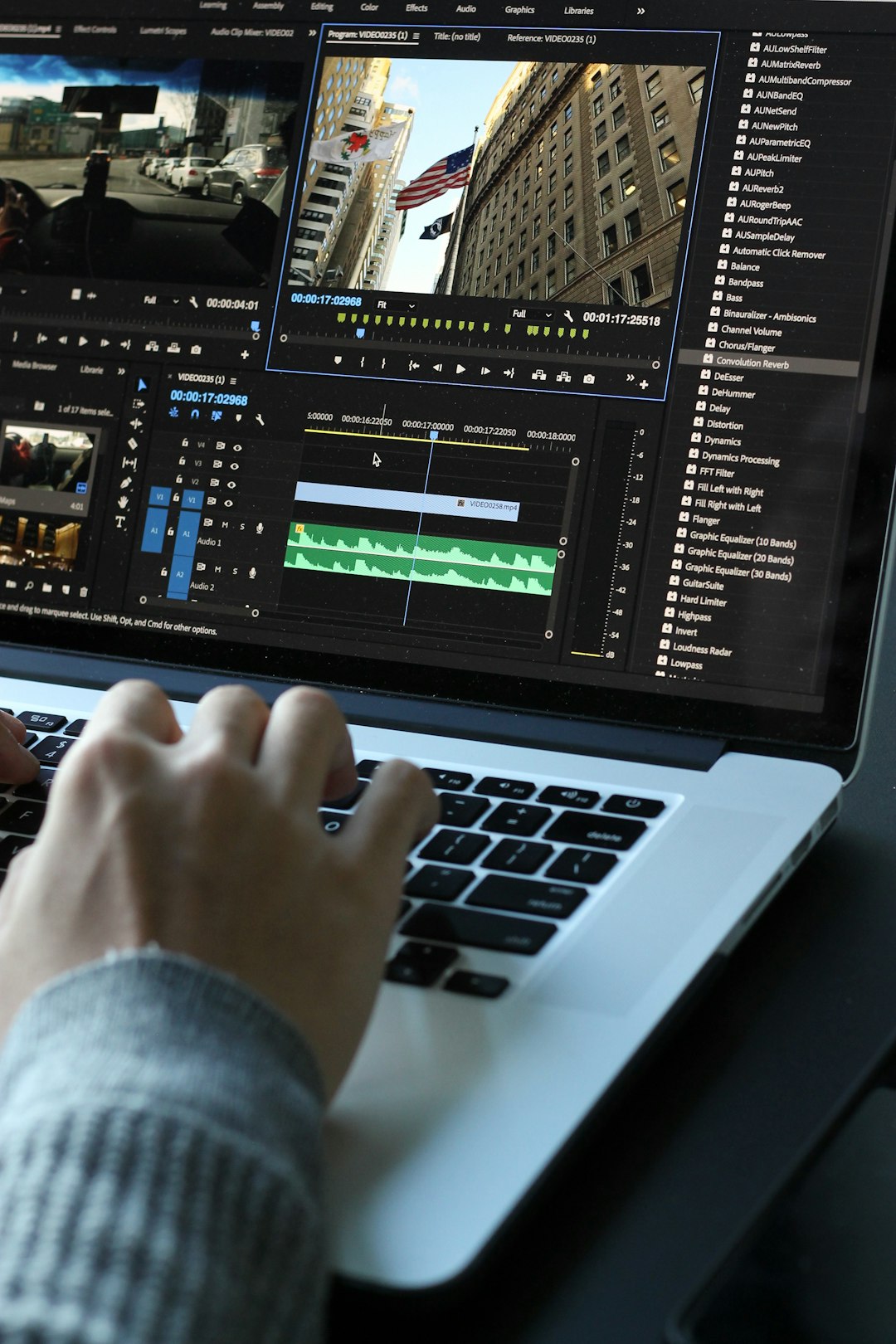
How to Choose the Right Software
Start with your device. If you use an older laptop, heavy software may run poorly. If you edit on a phone, pick a mobile-first app. If your computer has at least 16 GB of RAM and a decent graphics card, DaVinci Resolve becomes more realistic.
Next, define your project type. A wedding highlight, gaming video, school report, product demo, and 15-second social clip have different needs. Short social videos benefit from speed and captions. Longer videos need media organization and reliable audio tools.
Also consider your learning plan. If you want quick results, use iMovie, CapCut, or Clipchamp. If you want a serious skill path, start with DaVinci Resolve or another full timeline editor. You will struggle more at first, but the skills transfer better.
A Practical Learning Path for New Editors
Learning video editing is easier when you build small finished projects. Do not start with a 30-minute documentary. Start with a one-minute edit and complete it.
- Project 1: Cut a 30-second montage using five clips and one music track.
- Project 2: Edit a 60-second talking video. Remove pauses and fix audio levels.
- Project 3: Add titles, captions, and simple transitions.
- Project 4: Edit a 2-minute story with a beginning, middle, and end.
- Project 5: Export the same video for YouTube, Instagram, and a presentation.
This sequence teaches more than random tutorials. You learn timing, pacing, sound, structure, and delivery. Those are real editing skills.
Common Beginner Mistakes
New editors often add too many transitions. Cuts are usually stronger. Use fades and effects only when they support the message.
Another common mistake is ignoring audio. Clear voice, balanced music, and reduced background noise make a video feel more professional. A simple volume adjustment can improve a project more than a flashy effect.
File management also matters. Create folders for footage, audio, images, project files, and exports. Losing one clip can break an edit. It sounds boring because it is boring. It also saves hours.
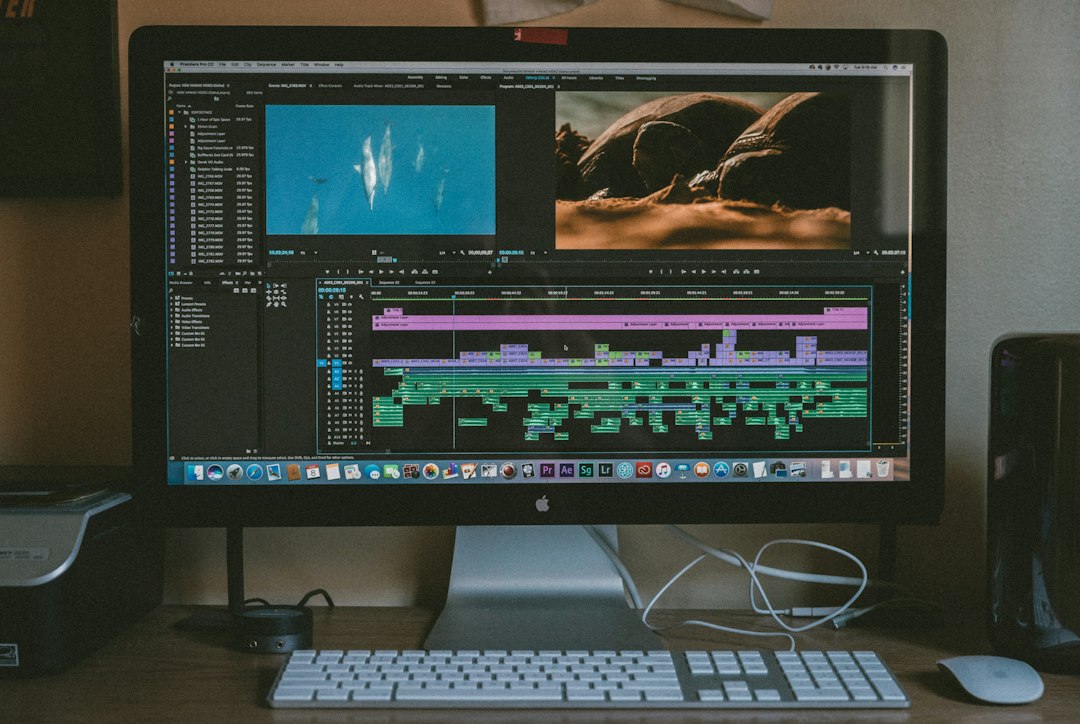
Free vs Paid Beginner Editing Software
Free software is enough for most beginners. You can learn editing principles without paying. Free tools often include trimming, titles, music, filters, and HD exports.
Paid software can help when you need better stock assets, cloud storage, advanced effects, brand kits, or team features. Do not pay only because a tool looks professional. Pay when the software removes a real limit from your work.
Final Recommendation
If you are serious about learning video editing, choose DaVinci Resolve on desktop or iMovie if you use Apple and want simplicity. Choose CapCut if your main goal is short social content. Choose Clipchamp for basic Windows and browser projects.
The best beginner editing software is not the fanciest option. It is the one you will open three times a week, use without dread, and finish projects with. Start simple, build often, and review each finished video with a critical eye. That is how editing skill grows.