
CapCut vs. Boomerang: How to Make Looping Boomerang Videos
Use Boomerang when you need a loop in under ten seconds; use CapCut when the loop has to look clean, branded, timed to music, or ready for reuse across platforms. Instagram originally described Boomerang as a tool that takes a burst of photos and stitches them into a short video that plays forward and backward [source: Instagram]. That simple idea still works, but CapCut gives you more control over speed, trimming, sound, captions, export quality, and aspect ratio.
TLDR: Boomerang is best for quick, casual loops inside Instagram Stories, such as a coffee pour, a hand wave, or a product unboxing flick. CapCut is better when you want a smoother loop for TikTok, Reels, Shorts, or an ad, especially if you need text, music, color correction, or a 9:16 export. For example, a small bakery could film a 2 second icing swirl, repeat it 4 times in CapCut, add a price sticker, and turn it into an 8 second promo instead of posting a raw Story clip. If speed matters most, pick Boomerang; if polish matters, pick CapCut.
CapCut vs. Boomerang: the practical difference
Boomerang is a capture tool. It records a tiny action and turns it into a forward-backward loop. You point, tap, and post. There is almost no learning curve.
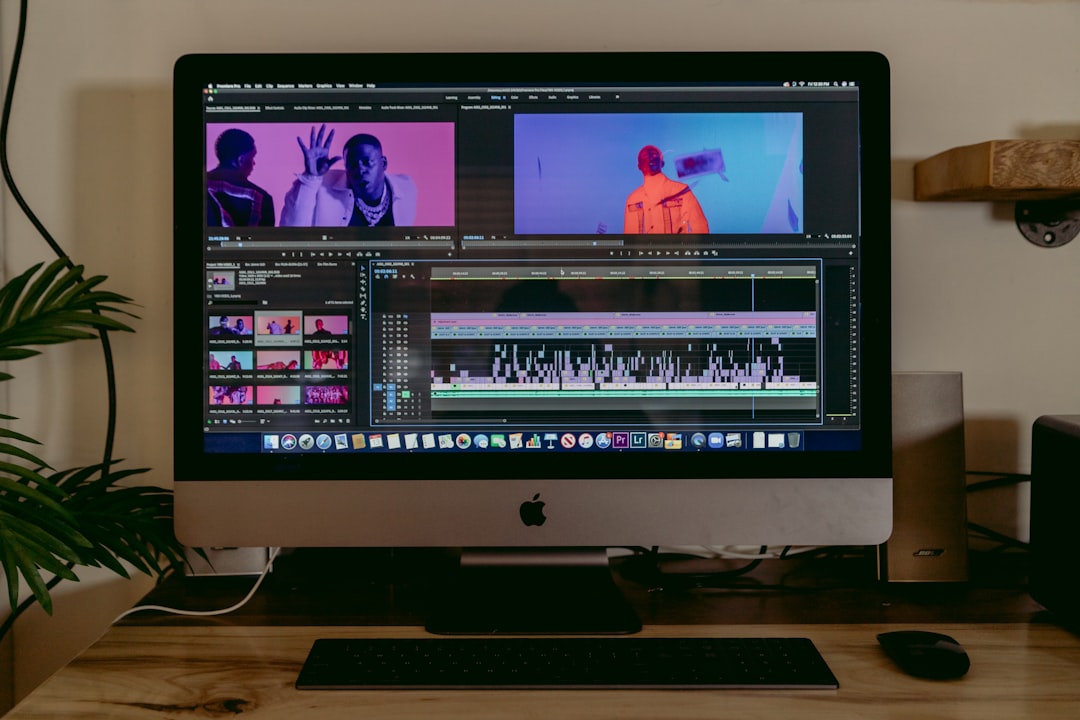
CapCut is an editor. You import a video, trim it, reverse it, repeat it, adjust timing, add music, then export it. The workflow takes longer, but the result usually looks more deliberate.
The catch is that Boomerang feels great until you need one small fix. Maybe the first frame is ugly. Maybe the loop jerks. Maybe the lighting shifts. You cannot do much inside the basic Boomerang workflow. In CapCut, those small fixes are the whole point.
When to use Boomerang
Use Boomerang when the moment matters more than production quality. It works well for spontaneous, physical motion. Think of actions with a clear start and end.
- Best for: Stories, casual Reels, party clips, behind the scenes posts.
- Ideal actions: jumping, clinking glasses, flipping hair, throwing confetti, opening a box.
- Main benefit: near instant creation.
- Main weakness: limited editing control.
Boomerang also suits creators who post in the moment. If you are at an event and want a playful clip before people move on, it is hard to beat. There is no timeline, no export menu, and no serious setup.
Still, be realistic. Boomerang clips often look rough when reused outside Instagram. Compression, shaky framing, harsh indoor light, and awkward first frames can make the loop feel cheap. That may be fine for a Story. It is less fine for a brand account.
When to use CapCut
Use CapCut when the loop needs intent. It is better for product videos, tutorials, paid social posts, creator portfolios, and short clips that may be reposted later. CapCut’s editing features include trimming, speed tools, audio, captions, filters, and export options [source: CapCut].
- Best for: Reels, TikTok, YouTube Shorts, ads, product demos, branded posts.
- Ideal actions: pouring liquid, rotating products, makeup reveals, food prep, fitness moves.
- Main benefit: control over pacing, sound, and presentation.
- Main weakness: slower than Boomerang.
Honestly, it feels like overkill the first time you use CapCut for a two second loop. Then you fix the cut, smooth the reverse, add a beat, and realize why editors use it. A weak loop can become a clean micro video in five minutes.
How to make a Boomerang style loop in CapCut
You can create the same forward-backward effect in CapCut with one short clip. The key is to duplicate and reverse the footage.
- Film a short action. Keep it between 1 and 3 seconds. Use steady hands or a tripod.
- Open CapCut and start a new project.
- Import the clip and trim away dead time at the start and end.
- Duplicate the clip on the timeline.
- Reverse the duplicated clip. Place it directly after the original.
- Play it back. The motion should go forward, then backward.
- Repeat the pair if you want a longer loop.
- Add sound, text, or stickers only if they support the clip.
- Export in 9:16 for Reels, TikTok, and Shorts.
Keep the first and last frames similar if possible. That is what makes the loop feel smooth. If the camera moves too much, the backwards section will expose it. It drives me crazy that one tiny hand shake can ruin an otherwise good loop, so stabilize the phone before shooting.
How to make a loop with Boomerang
Boomerang is simpler. Open Instagram, go to the camera, choose the Boomerang option if available, hold the capture button, and record a brief motion. Review it before posting. If the action looks weak, reshoot rather than trying to save it later.
For better results, follow these rules:
- Use bright light. Loops look cleaner when the subject is sharp.
- Choose one action. A messy scene creates a messy loop.
- Stay close. Small movements read better when the subject fills the frame.
- Avoid slow gestures. Boomerang works best with crisp movement.
- Check the background. A moving crowd can distract from the main action.
Quality comparison
Speed: Boomerang wins. You can record and post almost instantly. CapCut needs importing, editing, and exporting.
Control: CapCut wins. You can trim bad frames, adjust speed, sync to music, add captions, and export different versions.
Professional use: CapCut wins. Brands need repeatable quality. A raw Boomerang can work, but it often looks like a quick Story rather than planned content.
Beginner friendliness: Boomerang wins for first-time users. CapCut is still easy, but the timeline can slow people down at the start.
Cross-platform posting: CapCut wins. A clip edited in CapCut can be saved, renamed, reused, and uploaded across several channels.
Which one should businesses use?
For business use, CapCut is usually the safer choice. A restaurant can loop a sauce pour. A clothing shop can loop a sleeve detail. A gym can loop one clean rep. These clips can carry a logo, price, caption, and call to action.
Boomerang still has a place. It is useful for live moments, staff posts, event coverage, and informal updates. It makes a brand feel human. Just do not expect it to replace edited short form video.
Simple shooting tips for better loops
- Plan the motion first. Know what the loop should repeat before recording.
- Use a clean background. The subject should be obvious in one second.
- Lock exposure if possible. Flickering brightness makes loops look sloppy.
- Record extra takes. Ten attempts for one clean loop is normal.
- Keep text short. Viewers may only see it for a few seconds.
A good loop is not just a repeated clip. It is a tiny visual hook. The best ones feel satisfying even without sound. If the motion is clear, the loop will hold attention longer.
Final recommendation
Pick Boomerang for speed, spontaneity, and casual Instagram moments. Pick CapCut for cleaner loops, reusable assets, better timing, and serious publishing. If you are posting for fun, Boomerang is enough. If the video represents a product, service, or personal brand, take the extra few minutes and build the loop in CapCut.