Fix “Your Device Isn’t Part of the Netflix Household” Easily
Few streaming errors are as frustrating as seeing the message “Your device isn’t part of the Netflix household” appear just when you are ready to watch your favorite show. This notification can interrupt family movie nights, prevent travel viewing, and leave account holders confused about what changed. Fortunately, in most cases, the issue is straightforward to resolve once you understand how Netflix defines a household and how device verification works.
TLDR: The “device isn’t part of the Netflix household” message appears when Netflix cannot verify that your device is connected to the account’s primary home network. You can fix it by connecting to the main household Wi-Fi, verifying the device through a code sent to the account owner, or updating your household settings in your Netflix account. Travelers and secondary users can temporarily verify their device without permanently changing the household. Following the correct steps ensures uninterrupted access while staying within Netflix’s account-sharing rules.
Why This Message Appears
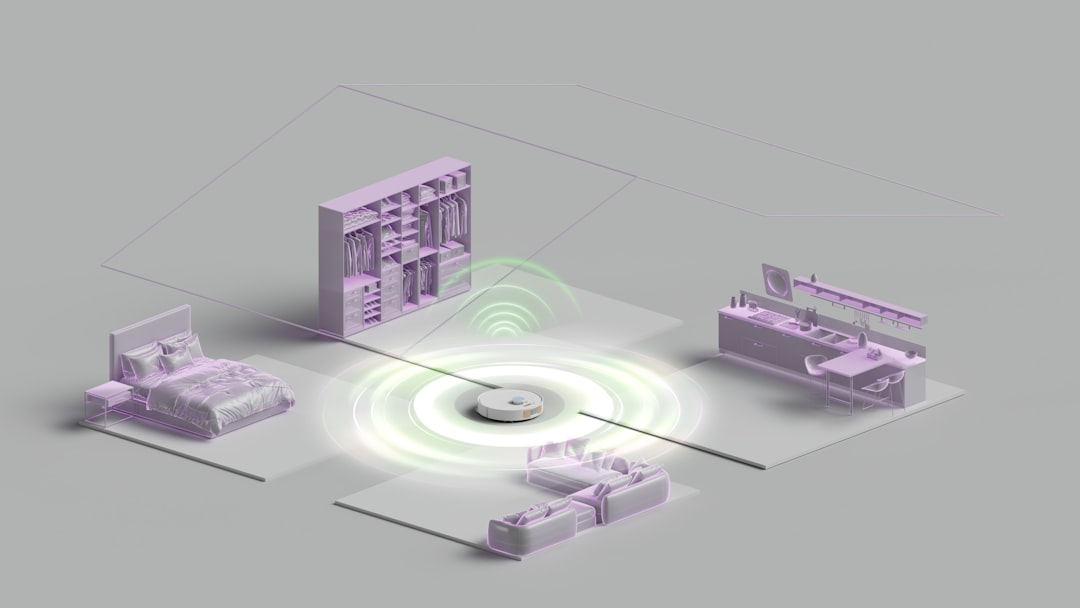
Netflix now limits account sharing to people living in the same physical household. The platform determines a “Netflix Household” based primarily on:
- The primary TV device used to set the household
- The home Wi-Fi network associated with the account
- Regular device activity from the same IP address
If you attempt to stream Netflix on a device that has not recently connected to the designated home network, you may see the warning message. This commonly happens when:
- You are traveling
- You moved to a new home
- You purchased a new smart TV
- You are using someone else’s Netflix account in a different location
Understanding this structure is critical. The issue does not usually signal account suspension or hacking. Instead, it indicates that Netflix cannot verify the device as part of the recognized household.
Step 1: Connect to the Main Household Wi-Fi
The simplest solution is often the most effective. If you are physically located at the account owner’s main residence, make sure:
- Your device is connected to the correct Wi-Fi network
- You are not using mobile data or a guest network
- You disable any VPN services temporarily
After connecting to the proper network, open Netflix and attempt streaming again. In many cases, the system will automatically recognize the device and remove the error.
Important: VPNs frequently cause verification issues because they mask your real IP address. If you use one, turn it off during setup.
Step 2: Verify the Device Using a Temporary Code
If you are away from home, Netflix allows temporary verification. When the message appears, follow these steps:
- Select the option to Update Netflix Household or Verify Device.
- Choose to have a verification link or code sent to the account owner’s email address or phone number.
- Enter the code on the device within the required time frame.
This process grants temporary access, typically lasting for a limited number of days. It is ideal for:
- Business travelers
- College students returning home periodically
- Family members vacationing
This does not permanently move the household designation. It simply confirms authorized use.
Step 3: Update or Set Your Netflix Household
If you have moved to a new residence or changed internet providers, you may need to update your official Netflix household.
Follow these steps carefully:
- Open Netflix on a TV connected to your new home Wi-Fi.
- Go to Get Help in the menu.
- Select Manage Netflix Household.
- Choose Update Household.
- Confirm using the code sent to the account owner’s email.
Once completed, the new Wi-Fi network becomes the primary household.
This approach is appropriate if:
- You permanently relocated
- You changed routers or internet providers
- Your home IP address changed significantly
Be aware that frequent household changes may trigger additional verification requests.
Step 4: Restart and Update Devices
Technical glitches occasionally cause verification failures even when you are at home. Before assuming it is an account issue, try basic troubleshooting:
- Restart the streaming device
- Restart your internet router
- Log out and log back into Netflix
- Update the Netflix app
- Check for system software updates on your TV or streaming device
Outdated firmware or app versions can interfere with network recognition. These steps often resolve minor technical conflicts quickly and safely.
Special Considerations for Travelers
If you travel frequently, you may find this error appearing often. In these cases, keep the following in mind:
- Log into Netflix on your devices at home before travel.
- Connect each device to your main Wi-Fi periodically.
- Download content in advance for offline viewing.
Offline downloads are particularly useful. Once content is downloaded, you can watch it without triggering household verification during your trip.
Professional tip: Maintain communication with the account owner during travel so they can quickly approve verification codes if needed.
College Students and Shared Living Situations
Students living in dorms or shared apartments frequently encounter the household restriction. According to Netflix policy, the account is meant for one primary household. Separate residences may require:
- Adding an extra member slot (if available in your region)
- Creating an independent Netflix account
Repeatedly verifying devices in a separate long-term residence may eventually prompt additional review or restrictions. For stability and uninterrupted service, establishing a separate account may be the most reliable long-term solution.
How Netflix Detects a Household
Netflix uses a combination of:
- IP address data
- Device identifiers
- Account activity patterns
While the company does not publicly disclose every technical detail, it is clear that consistency matters. Regular logins from the same location establish trust in the system’s algorithm.
Sudden geographic changes, multiple distant IP addresses, or prolonged use outside the home network can all trigger verification checks.
Common Mistakes to Avoid
Many users unintentionally complicate the situation. Avoid these common errors:
- Changing the household location while traveling
- Ignoring verification emails
- Using public Wi-Fi to set a household
- Sharing login credentials widely outside your home
Setting your household while connected to a temporary or public network may result in recurring access problems later.
When to Contact Netflix Support
If you have tried all recommended steps and still cannot resolve the issue, contacting Netflix customer support is appropriate. Have the following ready:
- The email associated with the account
- Details about your home network
- The type of device you are using
Support agents can confirm whether:
- Your household is properly registered
- There are account restrictions
- There are unusual login attempts
In rare cases, security measures or billing problems may contribute to access issues.
Maintaining Long-Term Access Without Interruptions
To prevent the message from appearing again, follow best practices:
- Use Netflix regularly on your main home TV.
- Connect personal devices to the primary Wi-Fi network at least once per month.
- Keep your account contact information current.
- Limit widespread password sharing.
Consistency is the key factor. The more stable your usage patterns, the less likely Netflix’s system is to flag your device.
Final Thoughts
The “Your device isn’t part of the Netflix household” message may appear alarming, but it is usually a straightforward verification issue rather than a serious account problem. By understanding how Netflix defines a household and following structured troubleshooting steps, you can regain access quickly. Whether you are traveling, relocating, or setting up a new TV, confirming your home network connection is typically the core solution.
Approach the situation methodically, avoid unnecessary household updates, and maintain consistent access patterns. With these measures in place, you can enjoy uninterrupted streaming while remaining compliant with account policies.