
How to Block Ads on Peacock: Browser Extensions, DNS Filtering, and Other Options Discussed by Users
The most reliable way to reduce Peacock ads is still Peacock Premium Plus, but users often test browser ad blockers, DNS filtering, and network tools first. Peacock says Premium Plus removes most ads, though some shows, live events, and channels may still include ads because of rights rules [source: Peacock].
TLDR: Browser extensions can block some Peacock ads in Chrome, Firefox, or Edge, but results vary and playback may break. DNS filtering helps on whole-home networks, yet it usually fails when ads come from the same Peacock servers as the video. For example, a household watching 10 hours a week could see 30 to 90 minutes of ads on an ad-supported plan, depending on show type and ad load. The cleanest fix is Premium Plus, while the most flexible test setup is a browser with a trusted blocker and a backup profile.
Why Peacock Ads Are Hard to Block
Peacock is not just a normal website with banner ads. It streams video segments, tracking calls, player scripts, and ad requests together. That makes blocking messy.
Honestly, it feels like Peacock ads are built to waste just enough time to annoy people. A 30-second pre-roll may not sound awful. But after several episodes, it stacks up fast.
Many users report three common problems:
- Ads still play even when an ad blocker is active.
- The video freezes after an ad slot gets blocked.
- Peacock detects the extension and asks the viewer to disable it.
This happens because streaming ads can be placed inside the same playback flow as the main video. When that happens, blocking the ad can also block the show.

Option 1: Browser Extensions
Browser extensions are the first thing most users try. Popular choices include uBlock Origin, AdGuard, and privacy tools that block trackers. These work best when Peacock is watched in a desktop browser.
The setup is simple:
- Install one trusted ad blocker.
- Open Peacock in a browser profile used only for streaming.
- Clear cookies if Peacock keeps showing old detection messages.
- Test one episode before changing more settings.
Using five blockers at once is a bad idea. It can make the player slower and harder to fix. One well-maintained extension is usually better than a messy pile of tools.
The catch is that browser blocking is a moving target. A filter that works on Monday may fail by Friday. Peacock can change scripts, ad paths, and video behavior. Users may then need updated filter lists or a different browser.
Best for: laptop and desktop viewers who want a quick test.
Worst for: smart TVs, Roku, Fire TV, Apple TV, and mobile apps.
Option 2: DNS Filtering
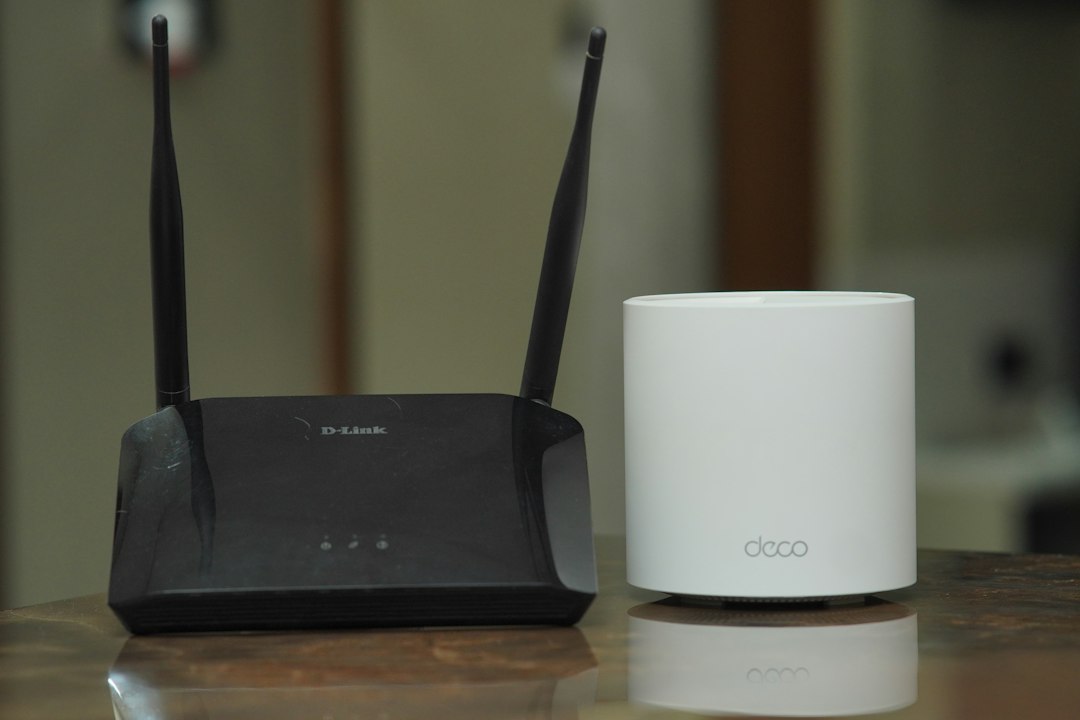
DNS filtering blocks requests before they reach ad servers. Tools include NextDNS, AdGuard DNS, Pi-hole, and some router-level filters. This can protect every device on a home network.
It sounds perfect. In practice, it is limited. DNS filters block domains, not pieces of a video stream. If Peacock serves ads and shows from related or shared domains, DNS blocking may not know what to cut.
DNS filtering can still help with:
- Tracking domains
- Analytics calls
- Some third-party ad requests
- General web ads on other sites
It may not remove Peacock video ads. Worse, aggressive blocklists can break login, thumbnails, captions, or playback. Expect to waste time on trial and error if the household uses many devices.
Option 3: Premium Plus
Premium Plus is the official ad-reduction option. It is also the least annoying for most users. There is no extension to update. There are no filter lists. There is less chance of a black screen during a show.
Still, “ad-free” does not always mean zero ads. Live sports, live channels, select shows, and promo clips may still contain ads. This irritates users because they paid extra and still see interruptions in some places.
Best for: families, smart TV users, and people who do not want tech chores.
Worst for: viewers who expect every single ad to vanish.
Option 4: Device and App Workarounds
Users also discuss other workarounds. Some cast from a desktop browser with an ad blocker. Some use HDMI from a laptop to a TV. Others switch browsers when Peacock detects a blocker.
These methods can work, but they are clunky. HDMI gets old fast. Casting may reintroduce ads if the stream transfers to the native Peacock app. Mobile apps are harder because iOS and Android limit what blockers can touch inside apps.
A separate browser profile can help. It keeps Peacock cookies, extensions, and settings away from normal browsing. If playback breaks, the viewer can reset that profile without wrecking the main browser.

Privacy and Account Risks
Ad blocking is not only about ads. Many users also want fewer trackers. Browser extensions and DNS filters can reduce some tracking traffic. They do not make streaming private, though. Peacock still sees account details, device data, IP address, and viewing activity.
Viewers should avoid shady “Peacock ad remover” apps. A tool that asks for account login details is a major red flag. Browser extensions should come from official stores, have recent updates, and need only reasonable permissions.
Best Practical Setup
For most users, the sensible path is simple:
- Use Premium Plus if Peacock is watched often on a TV.
- Try uBlock Origin or AdGuard for desktop browser viewing.
- Add DNS filtering for general privacy, not as a guaranteed Peacock fix.
- Keep a clean browser profile just for streaming.
- Avoid unknown tools that promise perfect ad removal.
No single method works for everyone. Peacock changes. Blocklists change. Apps behave differently from browsers. The best option depends on the device, the plan, and the viewer’s patience.
FAQ
Can Peacock ads be blocked completely?
Sometimes on desktop browsers, but not reliably. Premium Plus removes most ads, yet some content may still include commercials.
Does uBlock Origin work on Peacock?
It may work for some users in a desktop browser. It can also trigger playback errors or ad blocker warnings.
Will Pi-hole block Peacock ads?
Usually not fully. Pi-hole can block some tracking and ad domains, but it struggles when ads share delivery paths with video.
Can ads be blocked on Roku or Fire TV?
Not easily. Streaming devices use native apps, so browser extensions do not apply. DNS filtering may help a little, but results are limited.
Is Premium Plus worth it?
For heavy Peacock users, yes. It is the simplest way to cut most interruptions without constant fixes.