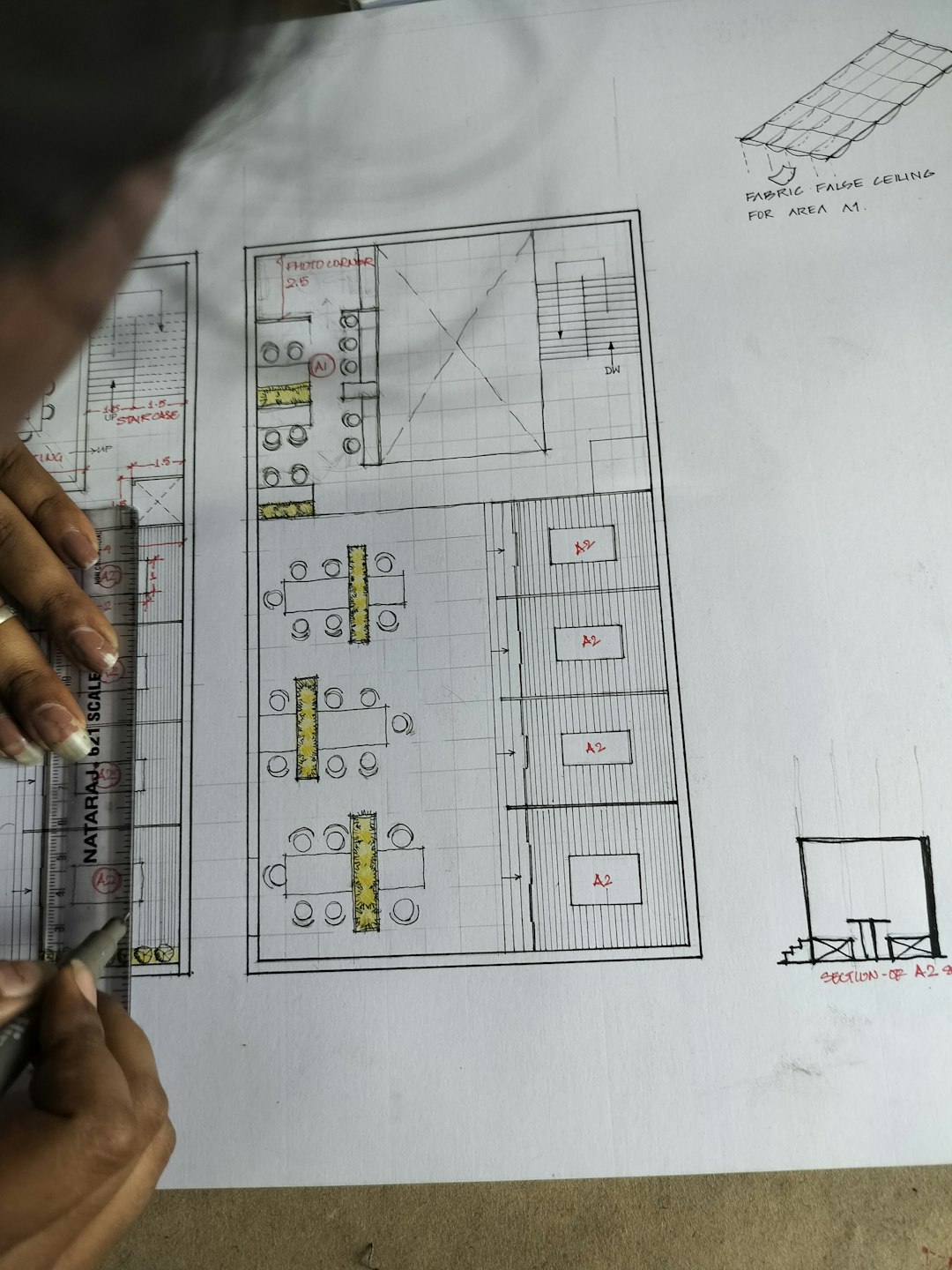
LibreCAD vs FreeCAD vs QCAD: 6 Free CAD Programs for 2D Drafting, Technical Drawings, and Engineering Projects
Start with LibreCAD if you need clean 2D drafting without cost, pick QCAD if you want a smoother drafting workflow, and use FreeCAD when your 2D drawings must connect to 3D engineering models. LibreCAD is open source, runs on Windows, macOS, and Linux, and focuses on 2D CAD through DXF workflows [source: LibreCAD]. That makes it the safest first install for floor plans, mechanical layouts, shop drawings, and classroom work.
TLDR: For a small workshop drawing brackets, panels, or laser-cut parts, LibreCAD is usually enough and costs nothing. QCAD Community Edition feels more polished for daily 2D drafting, while FreeCAD is better when the same project may later need 3D modeling. If a team spends 10 hours per week on simple DXF edits, even saving 15% of drafting time can free up about 6 hours per month.

Quick comparison
| Program | Best for | Main drawback |
|---|---|---|
| LibreCAD | Free 2D drafting and DXF work | Interface feels dated |
| FreeCAD | Engineering projects with 2D and 3D links | Steeper learning curve |
| QCAD Community Edition | Fast 2D technical drawings | Some features sit in paid editions |
| SolveSpace | Parametric sketches and mechanical layouts | Not ideal for large drafting sheets |
| nanoCAD Free | AutoCAD-like 2D drafting | Windows-focused |
| Solid Edge 2D Drafting | Professional mechanical drafting | More corporate than lightweight |
1. LibreCAD: best free starting point for 2D drafting
LibreCAD is the cleanest choice for users who want free 2D CAD without a sales funnel. It handles lines, arcs, layers, blocks, dimensions, hatching, and DXF files. For many users, that is the real work.
It fits floor plans, furniture layouts, machine plates, wiring diagrams, classroom assignments, and basic fabrication drawings. The software is also light. It runs well on older computers, which matters in schools and small shops.
The annoying bit is the interface. It can feel like software from another decade. Some tools take an extra click or two compared with commercial CAD. Still, once layers and snaps are set up, it gets the job done with very little drama.
2. FreeCAD: best when 2D drafting meets 3D engineering
FreeCAD is not mainly a 2D drafting tool. It is a parametric 3D CAD program with workbenches for sketching, part design, technical drawings, and engineering work. That matters if your 2D drawing is only one part of a bigger project.
Use FreeCAD when you need parts, assemblies, dimensions, constraints, and drawing sheets. A mechanical part can start as a sketch, become a 3D model, then be placed into a technical drawing. That is a strong workflow for makers and engineers.
Expect to waste time on setup at first. Workbenches, constraints, and drawing views can confuse new users. But for serious engineering projects, FreeCAD has far more depth than a plain 2D drafting tool.
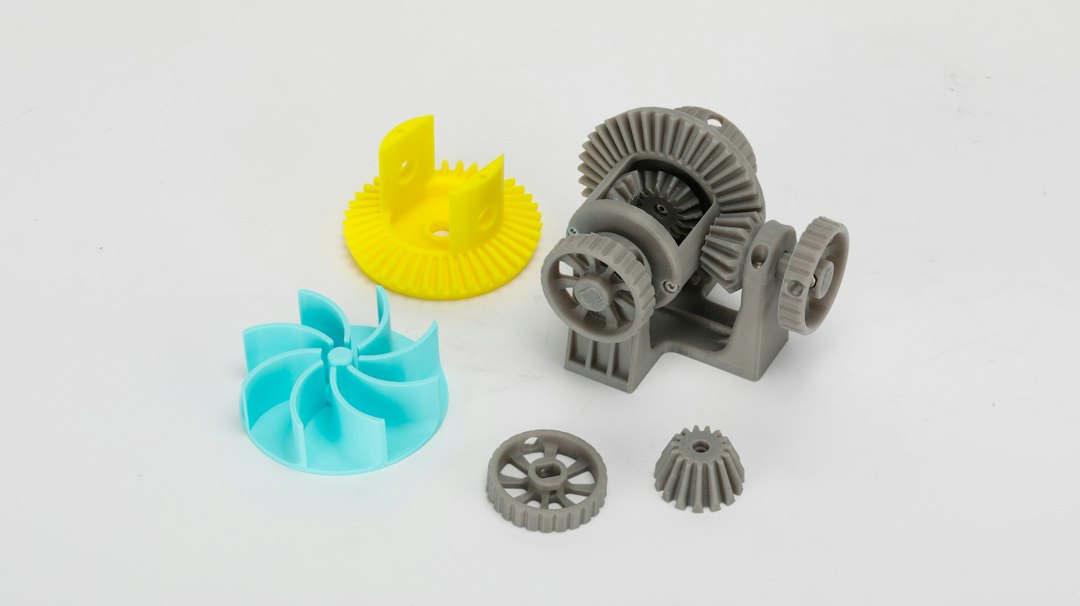
3. QCAD Community Edition: best simple drafting feel
QCAD is focused on 2D CAD. That focus helps. Its drawing tools feel direct, and the interface is often easier to settle into than LibreCAD. The Community Edition is free and open source, while the Professional version adds more file support and advanced tools.
QCAD is a strong pick for architectural plans, part drawings, schematics, and workshop layouts. Its snap tools, layer controls, blocks, and dimension tools are practical. If you only care about clean 2D work, it may feel more comfortable than FreeCAD.
The catch is edition confusion. Some tutorials show Pro-only tools. That can be irritating when you are trying to finish a drawing at 11 p.m.
4. SolveSpace: best for parametric sketches
SolveSpace is small, sharp, and useful for constraint-based drafting. It lets you build geometry with dimensions and relationships. Change one value, and the sketch updates. That is helpful for brackets, linkages, laser-cut parts, and simple mechanisms.
It is not the best option for full drafting sheets with many notes and title blocks. Think of it as a precise design sketcher, not a full drafting office. For engineering ideas, it can be surprisingly fast.
5. nanoCAD Free: best AutoCAD-style option
nanoCAD Free looks and behaves more like classic AutoCAD than most free CAD tools. That is useful if you already know command-line drafting, model space, paper space, layers, and DWG-style workflows.
It suits users who receive files from contractors or older CAD systems. It also works well for 2D production drawings. The weak point is platform support. If your office uses macOS or Linux, LibreCAD and QCAD are safer bets.
6. Solid Edge 2D Drafting: best professional free drafting package
Solid Edge 2D Drafting is a free drafting tool from Siemens. It is aimed at professional mechanical drawing. It includes strong dimensioning, annotation, sheet setup, and production drawing tools.
This is a good option for users who want industrial drafting features but do not need full 3D CAD. It can feel heavier than LibreCAD or QCAD. Still, for detailed mechanical sheets, that weight can be worth it.

Which one should you choose?
- Choose LibreCAD if you want free, open source 2D drafting with no clutter.
- Choose QCAD if you want a cleaner 2D drafting experience and can live with edition limits.
- Choose FreeCAD if your 2D sheets come from 3D parts or engineering models.
- Choose SolveSpace for parametric sketches and small mechanical concepts.
- Choose nanoCAD Free if you prefer an AutoCAD-like workflow on Windows.
- Choose Solid Edge 2D Drafting for professional mechanical drawings at no cost.
Final recommendation: Install LibreCAD first for pure 2D work. Try QCAD if you want better comfort. Move to FreeCAD when your project grows beyond flat drawings. That simple order saves time and avoids tool overload.