MacBook Air Problems: Common Issues & Fixes
Apple’s MacBook Air is widely known for its slim design, long battery life, and dependable everyday performance. However, like any laptop, it can develop problems over time, especially as software updates, battery wear, storage limits, and hardware age begin to affect the user experience. Understanding the most common MacBook Air problems can help owners troubleshoot issues quickly before assuming the device needs a costly repair.
TLDR: MacBook Air problems often involve battery drain, overheating, slow performance, Wi Fi issues, keyboard trouble, display glitches, and charging failures. Many fixes are simple, such as restarting the device, updating macOS, resetting settings, freeing storage, or checking accessories. If problems continue after basic troubleshooting, the MacBook Air may need professional diagnosis, especially for battery, logic board, display, or port related issues.
Common MacBook Air Problems and How They Happen
The MacBook Air is generally reliable, but it is still affected by both software and hardware issues. Some problems appear after a macOS update, while others develop gradually as the battery ages or storage fills up. In many cases, the cause is not immediately obvious, so a step by step approach is usually the safest way to troubleshoot.
Before attempting advanced fixes, the user should always start with basic checks. These include restarting the MacBook Air, confirming that macOS is up to date, checking available storage, removing unnecessary accessories, and testing whether the issue occurs in Safe Mode. These simple steps often solve problems that seem more serious than they are.
1. MacBook Air Battery Draining Quickly
One of the most common complaints is that the MacBook Air battery drains faster than expected. This may happen because of background apps, high screen brightness, battery aging, or power hungry browser tabs. A newer MacBook Air with Apple silicon usually offers excellent battery life, so sudden drain often points to software activity.
To investigate, the user can open System Settings and check Battery usage. Activity Monitor can also show which apps are consuming the most energy. Browsers with many open tabs, video editing apps, cloud sync tools, and messaging apps can all reduce battery life.
- Lower screen brightness when full brightness is not needed.
- Close unused apps and browser tabs, especially video streaming pages.
- Enable Low Power Mode from Battery settings.
- Update macOS to fix bugs that may affect power management.
- Check battery health under Battery settings to see whether service is recommended.
If the battery health says Service Recommended, the battery may be worn out. In that case, software changes can help only slightly, and battery replacement may be the best long term fix.
2. MacBook Air Running Slow
A slow MacBook Air can make simple tasks feel frustrating. The issue may be caused by low storage, too many startup items, outdated software, or resource heavy apps. Older Intel based MacBook Air models may feel slower with newer versions of macOS, while newer Apple silicon models can slow down when storage is nearly full.
The user should first check available storage by going to System Settings > General > Storage. macOS needs free space for temporary files, updates, memory swap, and smooth operation. If the drive is almost full, performance can drop noticeably.
- Delete large unused files, old downloads, and duplicate media.
- Move photos, videos, and archives to an external drive or cloud storage.
- Remove unnecessary login items from System Settings > General > Login Items.
- Restart the MacBook Air to clear temporary memory usage.
- Run Activity Monitor and quit apps using excessive CPU or memory.
If the MacBook Air remains slow, starting in Safe Mode can help determine whether third party extensions or startup software are causing the issue. If performance improves in Safe Mode, the problem is likely related to installed software rather than the MacBook itself.
3. Overheating and Loud Fan Noise
Overheating is another frequent MacBook Air problem, especially on older Intel based models. Apple silicon MacBook Air models do not have fans, so they may become warm but remain silent. Heat can be caused by demanding apps, poor ventilation, dust buildup, or background processes.
The MacBook Air should be used on a hard, flat surface rather than a blanket, pillow, or lap for long periods. Soft surfaces can trap heat and make cooling less effective. When the device becomes hot during video calls, gaming, or editing, it may reduce performance to protect internal components.
Helpful fixes include closing heavy apps, checking Activity Monitor for high CPU usage, updating macOS, and avoiding direct sunlight. If an Intel MacBook Air fan runs loudly even when the laptop is idle, the user may need to reset the SMC on applicable models or have the device inspected for dust or hardware faults.

4. MacBook Air Not Charging
When a MacBook Air does not charge, the issue may involve the power adapter, cable, charging port, battery, or system software. The user should inspect the charging cable for damage, try a different wall outlet, and make sure the USB C or MagSafe connector is fully seated.
If the device uses USB C charging, another compatible charger can help confirm whether the original adapter is faulty. Some low wattage adapters may power the device slowly but fail to charge effectively during heavy use. The user should also clean the charging port gently, making sure there is no lint or debris blocking the connection.
For Apple silicon models, shutting down the MacBook Air, waiting a minute, and restarting can sometimes restore normal charging behavior. For older Intel models, an SMC reset may help resolve charging and power related issues. If the MacBook Air still does not charge, the battery or charging circuitry may need professional repair.
5. Wi Fi Keeps Disconnecting
Wi Fi problems can appear as slow loading pages, dropped connections, or failure to connect to a known network. The cause may be the router, macOS network settings, interference, VPN software, or outdated system files.
The first step is to test another device on the same network. If other devices also struggle, the router or internet connection may be the source. If only the MacBook Air has trouble, the user can try forgetting the network and reconnecting with the password.
- Restart the router and the MacBook Air.
- Forget the Wi Fi network and reconnect.
- Disable VPN apps temporarily.
- Update macOS to the latest version.
- Check whether the issue happens on a different Wi Fi network.
If the problem continues across multiple networks, there may be a deeper software or hardware issue. In some cases, creating a new network location or removing old network configuration files may help, though less experienced users may prefer professional support for that step.
6. Keyboard or Trackpad Not Working Properly
Keyboard and trackpad issues can be especially disruptive. Some users experience repeated letters, stuck keys, unresponsive keys, or erratic cursor movement. On models with the butterfly keyboard design, debris and mechanical wear have historically caused key problems. Newer models are usually more reliable, but they are not immune to damage or software glitches.
For keyboard problems, the user can restart the device, check keyboard settings, and test the keys in another app. If only one app is affected, the app may be the issue. If multiple keys fail everywhere, hardware may be involved.
For trackpad issues, the user should check System Settings > Trackpad and look for changes in tap, click, tracking speed, or gesture settings. External mice, Bluetooth devices, and accessibility settings can also affect pointer behavior.
If liquid has been spilled on the keyboard or trackpad, the MacBook Air should be powered off immediately. Continued use can worsen damage, and professional inspection is strongly recommended.
7. Screen Flickering, Black Screen, or Display Problems
Display issues may include flickering, dimming, color distortion, a black screen, or lines across the display. These symptoms may be caused by software bugs, display settings, external monitor conflicts, or physical hardware failure.
The user should begin by adjusting brightness and checking whether the MacBook Air is actually powered on. If the screen is black but the keyboard lights or startup sound indicate activity, the issue may be display related. Connecting the MacBook Air to an external monitor can help determine whether the internal screen is the problem.
Software related fixes include restarting, updating macOS, disabling True Tone or Night Shift temporarily, and testing in Safe Mode. If lines, flickering, or black screen issues continue, the display cable, panel, or logic board may require service.
8. Apps Freezing or Crashing
Apps may freeze or crash because of bugs, outdated versions, incompatible extensions, or low system resources. If a single app crashes regularly, the user should update that app, remove and reinstall it, or check whether the developer has released compatibility notes for the current macOS version.
If many apps are crashing, the problem may be broader. The MacBook Air may be low on storage, running outdated macOS software, or experiencing memory pressure. Activity Monitor can help identify apps that are consuming too many resources.
Force quitting an app may provide temporary relief, but repeated crashes should not be ignored. The user should also check for malware like unwanted browser extensions, suspicious login items, or fake cleaning utilities, as these can cause instability.
9. External Monitor or Accessory Problems
Many MacBook Air owners use external monitors, hubs, keyboards, drives, or adapters. Problems can occur when accessories are low quality, underpowered, or incompatible. USB C hubs in particular can cause charging, display, or data transfer issues if they are not designed for the MacBook Air’s requirements.
If an external display does not work, the user should check the cable, adapter, monitor input source, and display settings. Trying a direct cable connection instead of a hub can help isolate the issue. For external drives, the user should confirm that the drive format is compatible with macOS.
When troubleshooting accessories, it is best to disconnect everything and test one device at a time. This makes it easier to identify the faulty adapter, cable, hub, or peripheral.
10. macOS Update Problems
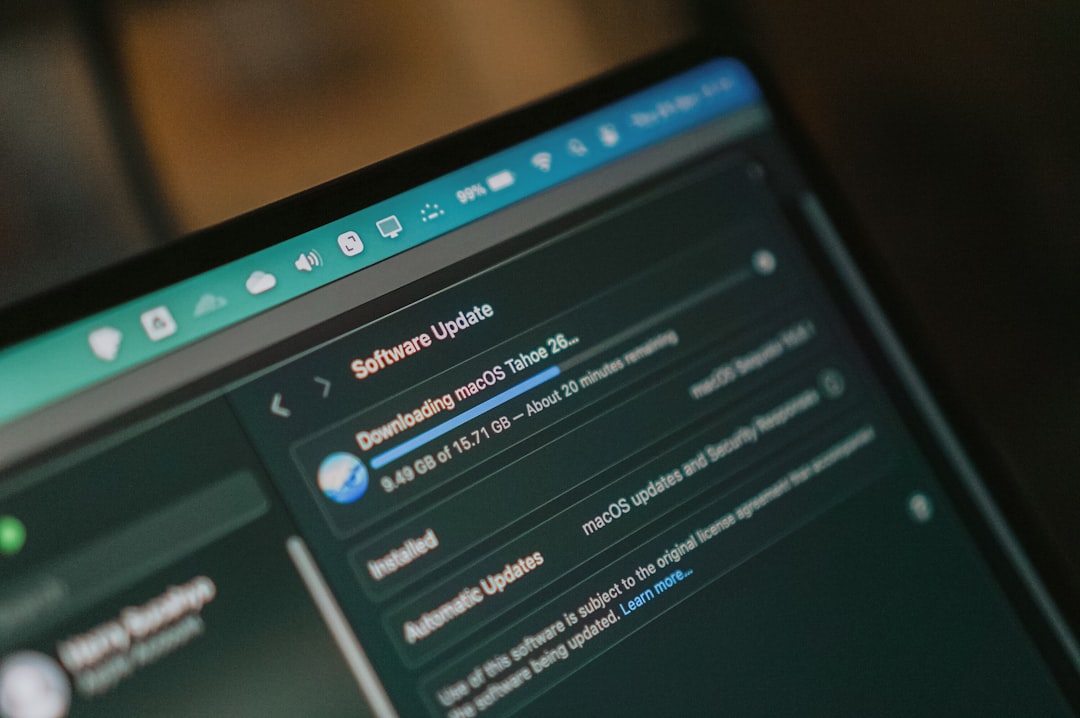
macOS updates are important for security and performance, but they can occasionally cause trouble. Some users experience failed downloads, installation errors, reduced battery life, or app incompatibility after updating.
Before installing a major macOS update, the user should back up the MacBook Air with Time Machine or another reliable backup method. The device should also have enough free storage and be connected to power. If an update fails, restarting and trying again may work, but persistent errors may require Safe Mode or macOS Recovery.
After an update, the MacBook Air may run warm or slow for a short time while Spotlight, Photos, and other services reindex files. If performance does not improve after a day or two, further troubleshooting may be needed.
Preventive Maintenance Tips
Many MacBook Air issues can be prevented with simple habits. The user should keep macOS and apps updated, avoid filling the internal storage completely, use certified chargers, and keep liquids away from the laptop. Regular restarts can also help clear temporary glitches.
- Back up regularly to prevent data loss.
- Keep at least 15 to 20 percent of storage free for smooth performance.
- Avoid extreme heat, including direct sunlight and hot cars.
- Use trusted accessories for charging, displays, and data transfer.
- Check battery health every few months.
When Professional Repair Is Needed
Basic troubleshooting can solve many common MacBook Air problems, but not every issue is user fixable. Professional repair is recommended when the device has liquid damage, a swollen battery, a cracked screen, charging port failure, repeated shutdowns, or signs of logic board failure. If the MacBook Air is still under warranty or covered by AppleCare, the owner should check service options before visiting a third party repair shop.
It is also wise to seek help when important data is at risk. Attempting repeated repairs or reinstallations without a backup can make recovery more difficult. A proper diagnosis can save time and reduce the chance of causing additional damage.
FAQ
Why is the MacBook Air so slow all of a sudden?
A MacBook Air may suddenly slow down because of low storage, background apps, a recent macOS update, malware like unwanted extensions, or an app using too much CPU or memory. Checking Activity Monitor and freeing storage are good first steps.
How long should a MacBook Air battery last?
A MacBook Air battery usually lasts several years, depending on usage and charging habits. If battery health shows Service Recommended or the laptop shuts down unexpectedly, the battery may need replacement.
Why does the MacBook Air get hot?
Heat is often caused by demanding tasks, video calls, browser tabs, poor ventilation, or background processes. Older Intel models are more likely to get hot and run fans loudly, while Apple silicon models usually manage heat more efficiently.
What should be done if the MacBook Air will not turn on?
The user should connect it to a known working charger, wait several minutes, check the cable and adapter, then hold the power button. If there is still no response, the device may need professional diagnosis.
Can MacBook Air problems be fixed at home?
Many software related problems can be fixed at home by restarting, updating macOS, freeing storage, checking settings, or removing problematic apps. Hardware problems involving the battery, screen, ports, keyboard, or logic board usually require professional service.