Where to Find Your Network Security Key
When a device asks for a network security key, it is asking for the password that protects a Wi Fi network. This key allows approved phones, laptops, tablets, printers, and smart devices to connect securely while keeping outsiders away. Many people lose track of it because it may be printed on a router, saved in a computer, or changed from the original default.
TLDR: A network security key is usually the same thing as a Wi Fi password. It can often be found on the router label, inside the router’s admin settings, on a device that is already connected, or in paperwork from the internet provider. If the key cannot be recovered, the router password can usually be changed through the router settings or reset process.
What a Network Security Key Means
A network security key is the credential used to encrypt and protect a wireless network. In most homes and small offices, it is simply the Wi Fi password. The label may also appear as WPA key, WPA2 password, wireless key, passphrase, or security password.
The key prevents unauthorized users from joining the network. Without it, a nearby person could potentially use the internet connection, access shared devices, or attempt to interfere with network traffic. For that reason, finding the key should be done carefully, and it should not be shared publicly.
Check the Router or Modem Label
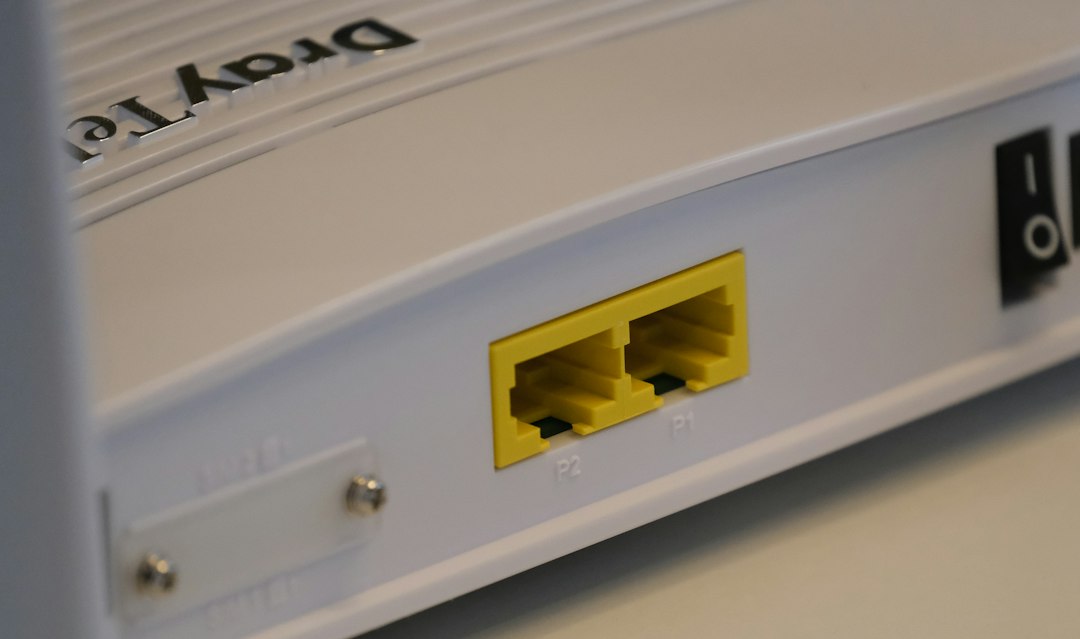
The first place to look is usually the router or modem itself. Many internet providers and router manufacturers print the default network name and password on a label attached to the bottom, back, or side of the device.
The label may include several pieces of information, such as:
- SSID: The network name that appears in the Wi Fi list.
- Network key: The default Wi Fi password.
- WPA key or WPA2 key: Another name for the wireless password.
- Admin password: The password for the router settings page, which may be different from the Wi Fi key.
If the network still uses the original password, the printed key should work. If someone changed the Wi Fi password after installation, the label may no longer be accurate.
Look in the Router Admin Page
If a device is already connected to the network, the network security key can often be found by signing in to the router’s admin page. This is the control panel where wireless settings, passwords, guest networks, and security options are managed.
In many cases, the router admin page can be opened by typing an address such as 192.168.1.1, 192.168.0.1, or a manufacturer-specific web address into a browser. The correct address is often found on the router label or in the user manual.
After logging in, the key is usually located in a section named:
- Wireless
- Wi Fi Settings
- Security
- WLAN
- Network Settings
The password may be hidden behind dots or asterisks, but many router interfaces include a show password option. If the admin login is unknown, the internet provider or router manual may provide the default credentials. However, if the admin password was changed and lost, a factory reset may be required.
Find the Key on a Windows Computer
A Windows computer that has previously connected to the Wi Fi network may have the network security key saved. This is helpful when the router label is missing or the password has been changed.
On Windows, the user can usually open the network settings, go to advanced network options, and view the wireless network properties. Under the Security tab, there is often a checkbox labeled Show characters. Once selected, the saved Wi Fi password becomes visible.
Access may require administrator permission. This is intentional, because saved wireless passwords are sensitive information. In office or school environments, regular users may not be allowed to view the key.
Find the Key on a Mac
On a Mac, saved Wi Fi passwords are stored in Keychain Access, Apple’s built-in password management system. A person can search for the network name, open the saved entry, and select the option to show the password. The Mac account password or Touch ID may be required before the key appears.
This method works only if the Mac has connected to the network before and the password is saved. If the network was forgotten or the device never joined it, the key will not be available there.

Check a Phone or Tablet
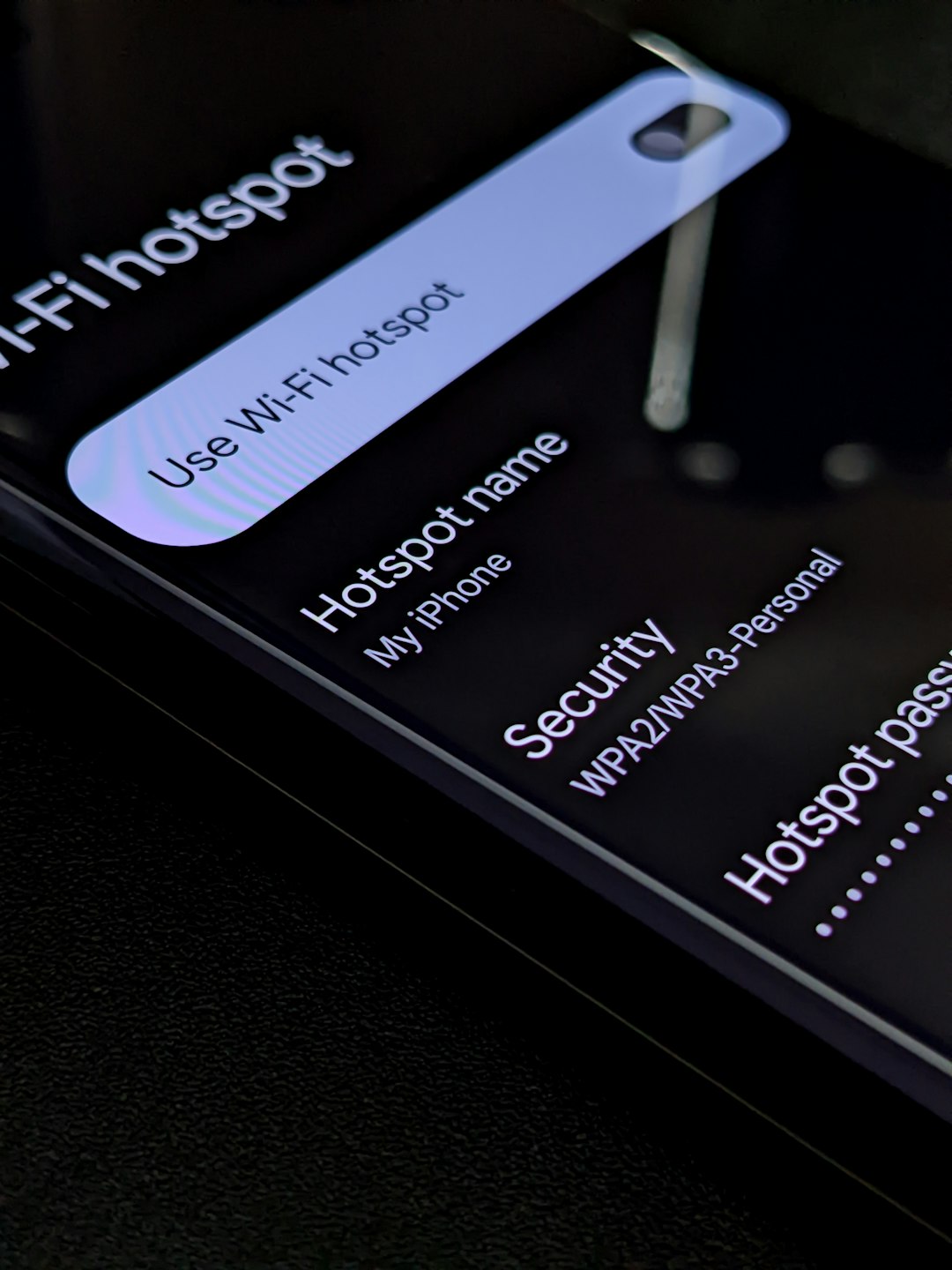
Modern smartphones and tablets may also help recover or share a Wi Fi password. On many Android devices, the Wi Fi settings include a saved network section. Selecting the connected network may display a QR code or reveal the password after authentication.
On iPhone and iPad, newer versions of iOS allow saved Wi Fi passwords to be viewed or shared. The device owner may need to use Face ID, Touch ID, or the device passcode. Apple devices can also share Wi Fi access between nearby trusted contacts without displaying the password directly.
Exact steps depend on the operating system version and device manufacturer, so settings names may vary. Still, connected mobile devices are often one of the easiest places to recover the key.
Review Internet Provider Documents
If the router was supplied by an internet service provider, the original network security key may appear in installation paperwork, welcome emails, account portals, or setup text messages. Some providers also place the Wi Fi details inside their mobile apps.
This method is especially useful for rented gateways or managed home internet equipment. If the password was never changed manually, the provider’s records may match the current key. If it was changed, the provider may still help guide the account holder through updating it.
Ask the Network Owner or Administrator
In shared homes, offices, schools, hotels, and public venues, the correct source is the network owner or administrator. A person should not attempt to bypass network security or access a private network without permission.
For a business network, the key may be controlled by an IT department. Some organizations avoid giving out the main Wi Fi password and instead provide a guest network. This protects internal systems while still allowing visitors to connect to the internet.
Use a QR Code or Shared Network Card
Some routers, apps, and mobile devices generate a QR code that contains the Wi Fi network name and security key. Scanning the QR code can connect a device without requiring the password to be typed manually.
This is convenient for homes, small businesses, cafés, and short-term rentals. However, once a QR code is printed or displayed, anyone who can scan it may gain access. For that reason, it should be placed only where appropriate.

When the Key Cannot Be Found
If the network security key cannot be located, the router password can usually be changed from the admin page. A new password should be strong, memorable, and difficult to guess. A good key uses a mix of words, numbers, and symbols, or a long passphrase.
If no one can access the router admin page, a factory reset may be the final option. This usually involves pressing and holding a small reset button on the router for several seconds. A reset restores default settings, including the original network name and password printed on the label. It may also remove custom settings, so it should be done carefully.
Tips for Keeping the Key Safe
- Store the Wi Fi password in a trusted password manager.
- Write it down and keep it in a secure household or office file.
- Use a guest network for visitors instead of sharing the main key.
- Change the password if it has been shared too widely.
- Use WPA2 or WPA3 security whenever available.
FAQ
Is a network security key the same as a Wi Fi password?
In most cases, yes. For home and small business wireless networks, the network security key is the password used to connect to Wi Fi.
Where is the network security key on a router?
It is often printed on a label on the bottom, back, or side of the router. It may be called network key, wireless password, WPA key, or passphrase.
Why does the printed router password not work?
The printed password may be the default key. If someone changed the Wi Fi password after setup, the label will no longer match the current network security key.
Can a connected device show the Wi Fi password?
Yes, many Windows computers, Macs, Android devices, iPhones, and iPads can display or share saved Wi Fi passwords after the owner verifies their identity.
What should happen if the key is lost completely?
The router password can usually be changed through the admin settings. If the admin login is also unavailable, a factory reset may restore the router to its default network details.
Is it safe to share a network security key?
It should be shared only with trusted people. For visitors or temporary users, a separate guest network is usually safer than sharing the main Wi Fi password.